Your dashboard is the first thing you see after signing in to the customer portal. It brings together everything about your account - your sending setup, your plan, your recent activity and anything that needs your attention - in one place. A few of the cards below only appear once you have an active plan - that's called out where it applies.
The overview tiles
Across the top of your dashboard, five small tiles summarise your account at a glance. Each one links through to the full page behind it.
- Domains - how many sending domains you've verified.
- Email addresses - how many sending identities (FROM addresses) you have set up.
- Active Subscriptions - your currently active plan subscriptions.
- Awaiting Payment - invoices that still need paying.
- Open Tickets - support tickets that haven't been resolved yet.
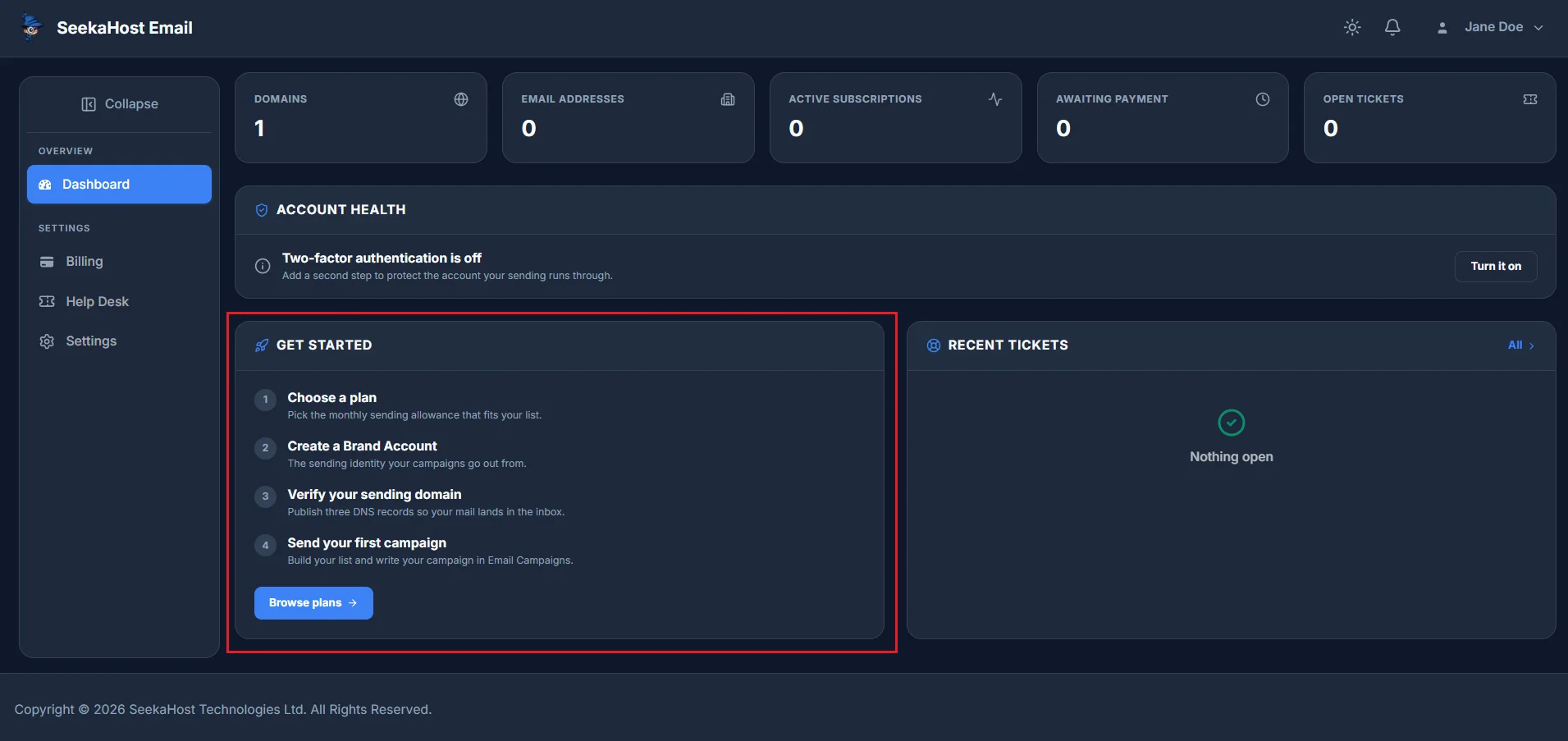
Get started
Until you choose a plan, this card takes the place of Email allowance below - a four-step checklist that takes you from nothing to sending your first campaign. From Email Addresses, Your Plan and Campaign activity don't exist on your dashboard at all yet; they only appear once you have an active plan.
- Choose a plan - pick the monthly sending allowance that fits your list.
- Create a Brand Account - the sending identity your campaigns go out from.
- Verify your sending domain - publish three DNS records so your mail lands in the inbox.
- Send your first campaign - build your list and write your campaign in Email Campaigns.
Account health
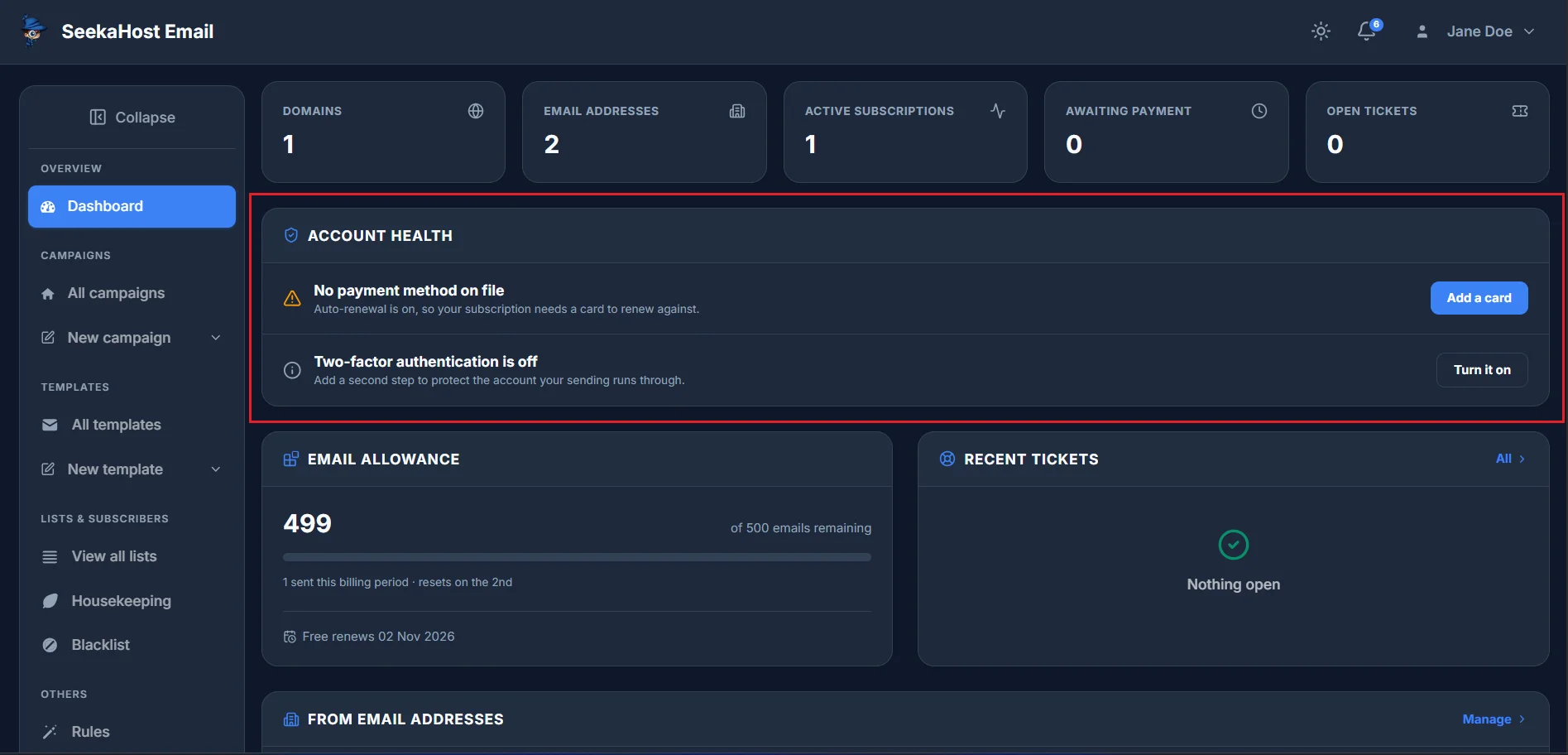
This checklist flags anything about your account that could use attention - for example an unverified sending domain, no sending identity set up yet, no payment method on file while auto-renewal is on, an incomplete billing address, or two-factor authentication turned off. Each item links straight to where you fix it. Once everything checks out, this card simply says your account is all set up.
Email allowance
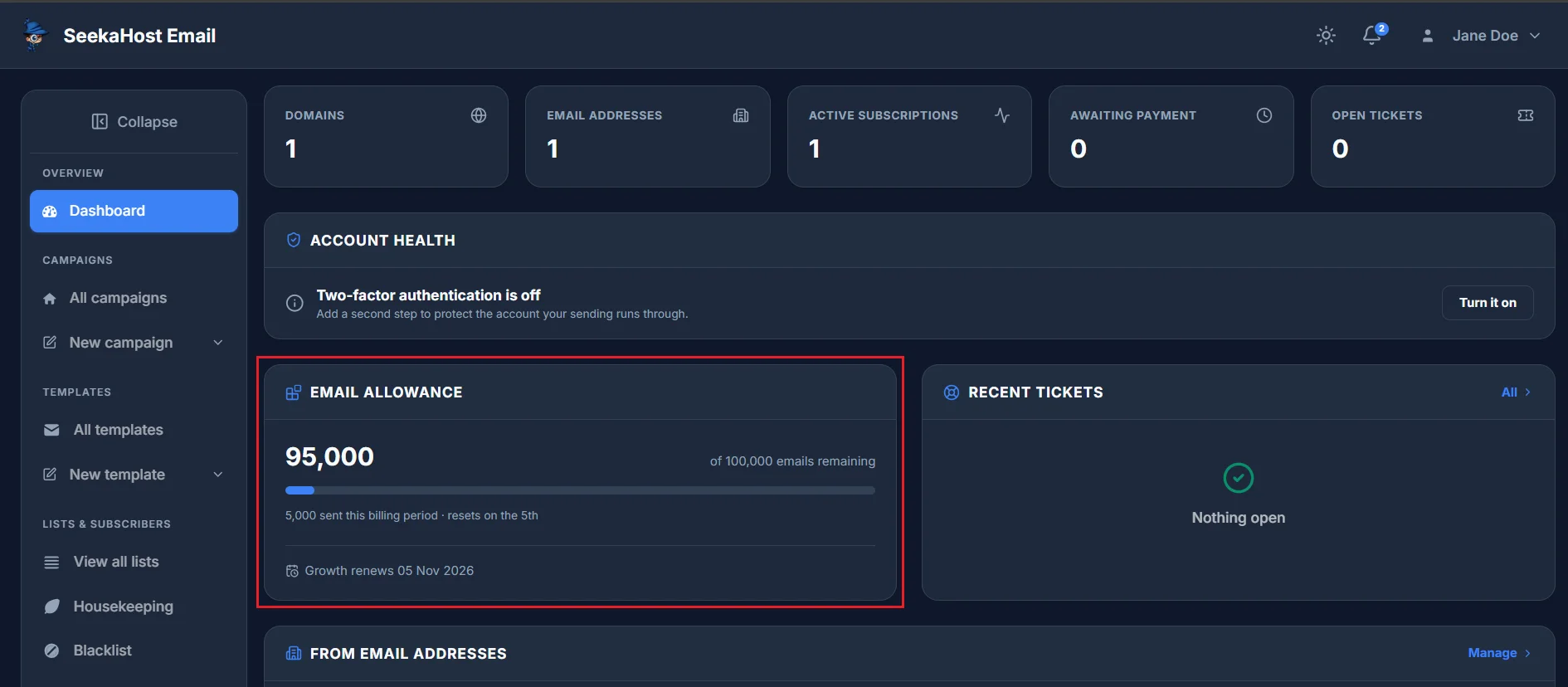
Once you have an active plan, this card replaces Get started: how much of your monthly sending limit you've used, when your plan renews, and a link to upgrade if you're getting close to your limit.
Payment required
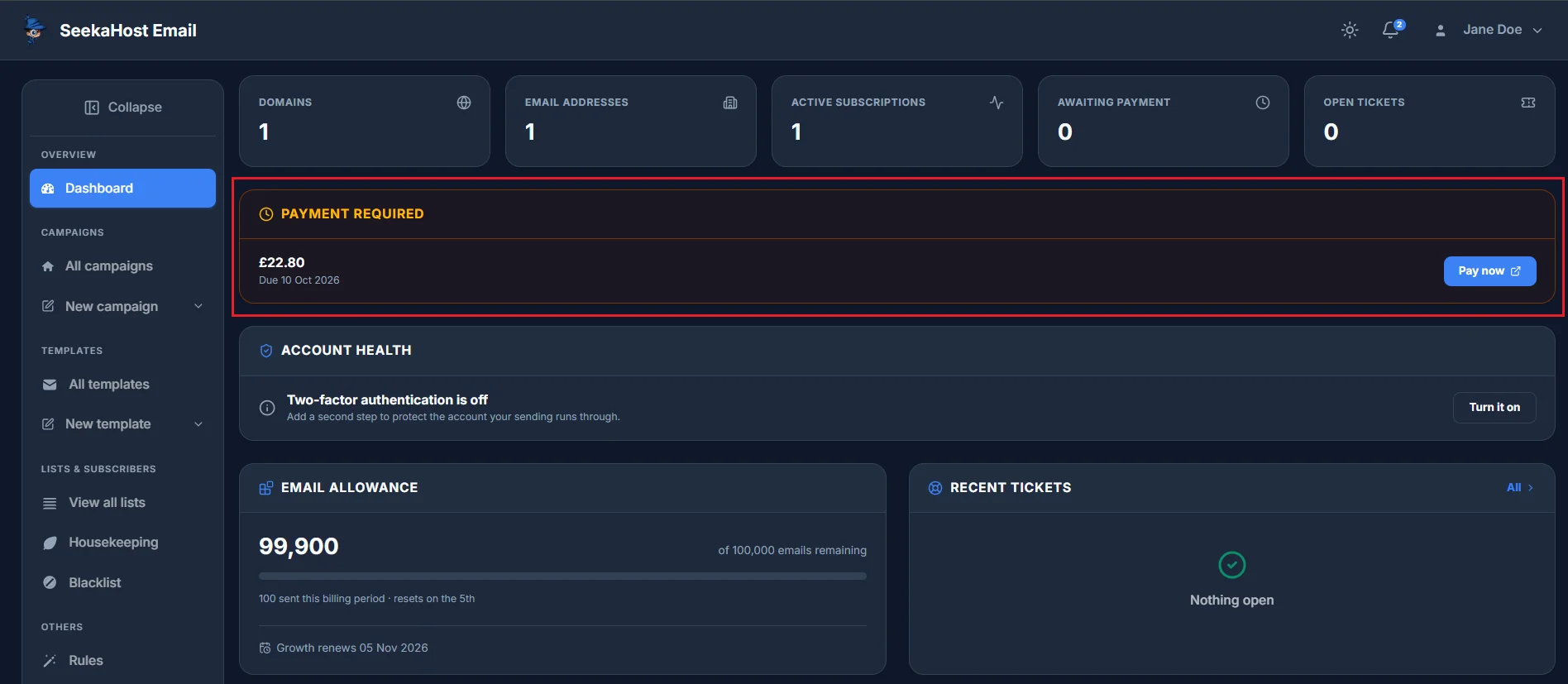
If you have an overdue invoice, a "Payment required" panel appears near the top of your dashboard listing the amount and due date, with a Pay now link so you can clear it immediately. This panel only shows up when something is actually outstanding - otherwise you won't see it at all.
Recent tickets
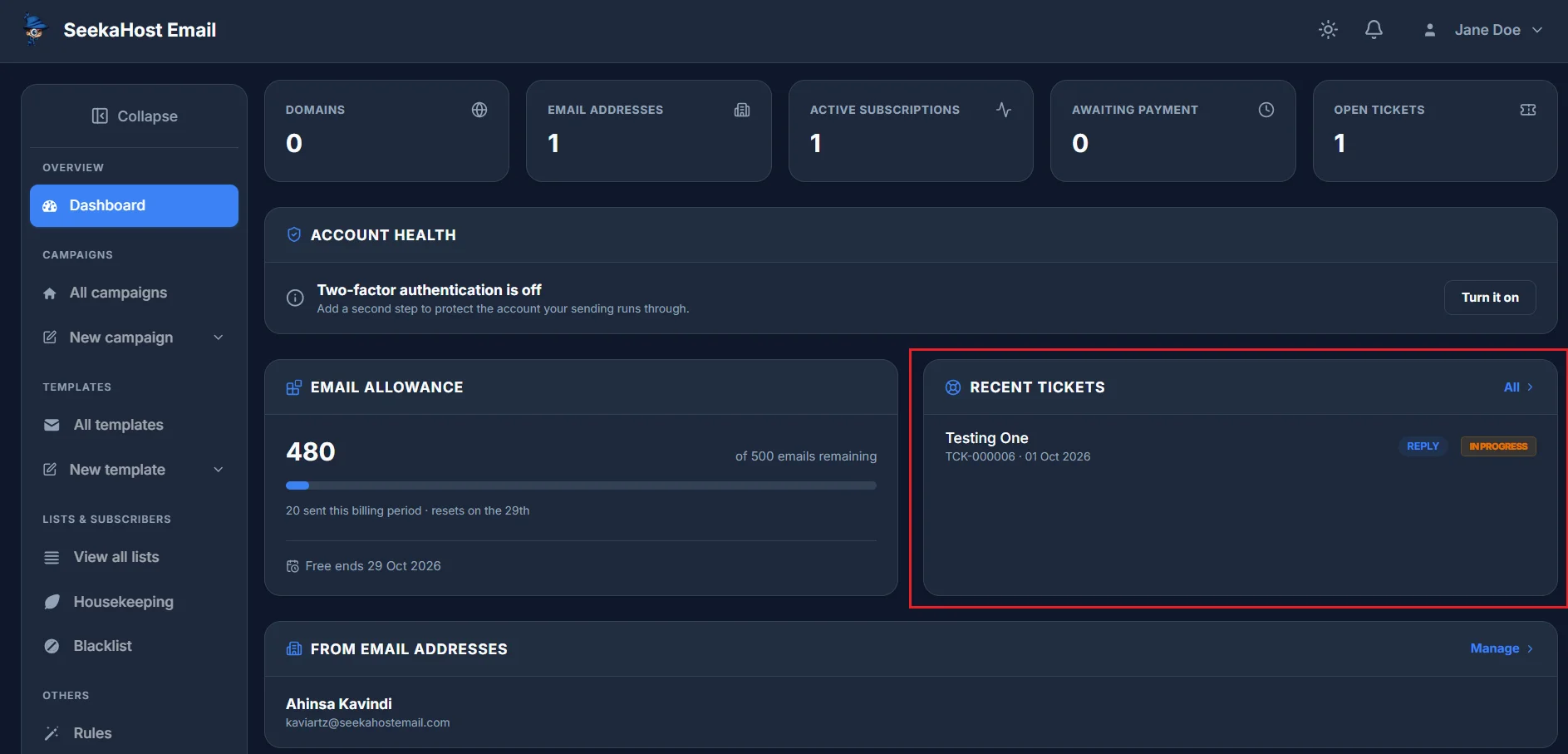
Your four most recent support tickets are listed here, each with its subject, ticket number and the date of the last message. A ticket shows a Reply badge whenever our support team is waiting on a reply from you. Click All to see your full ticket history.
From Email Addresses
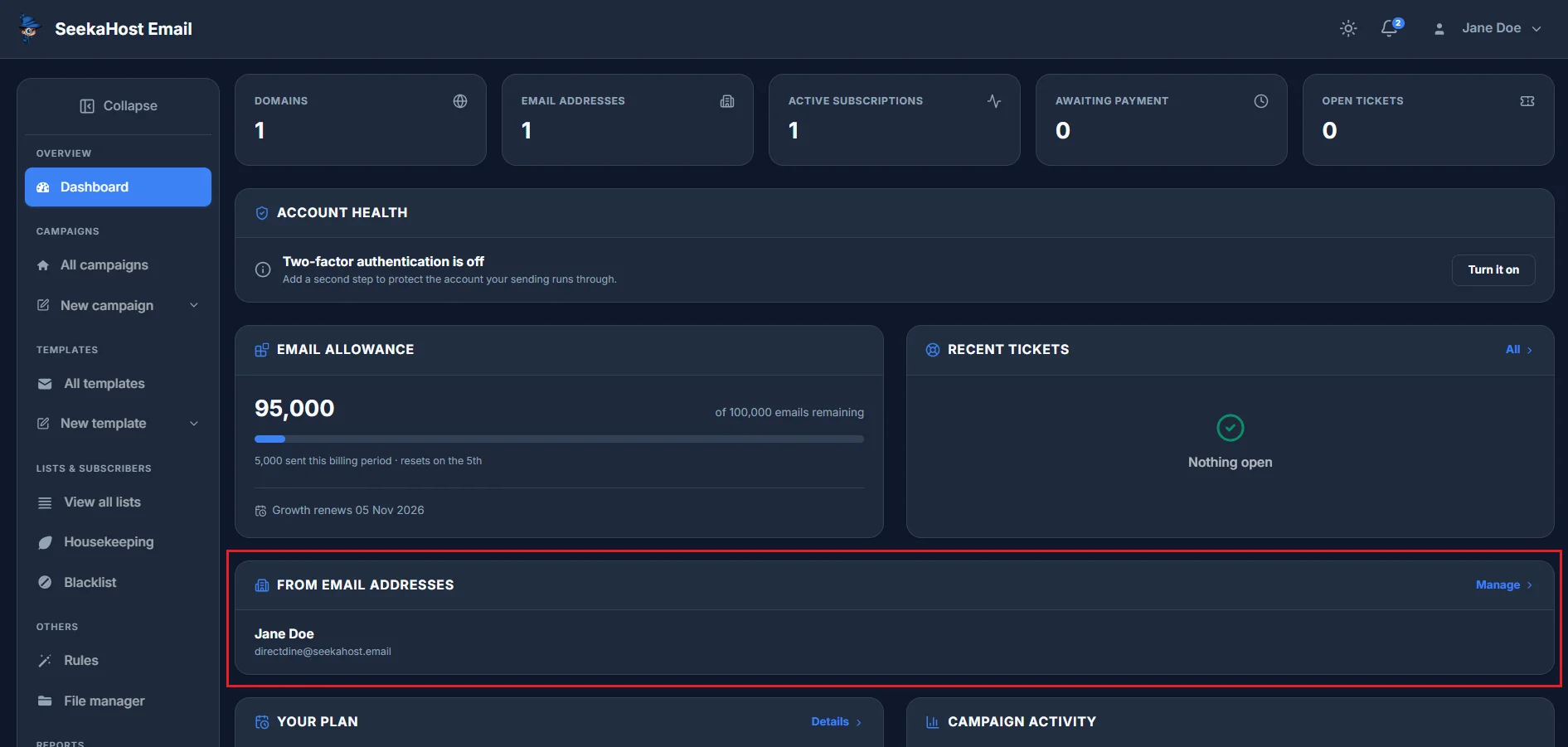
Once you have an active plan, this card lists the sending identities on your account - the name and address your campaigns are sent from - along with a Paused badge for any that aren't currently active. Manage takes you to Profile → Email, where you can add, verify or remove sending identities and domains.
Your Subscription plan
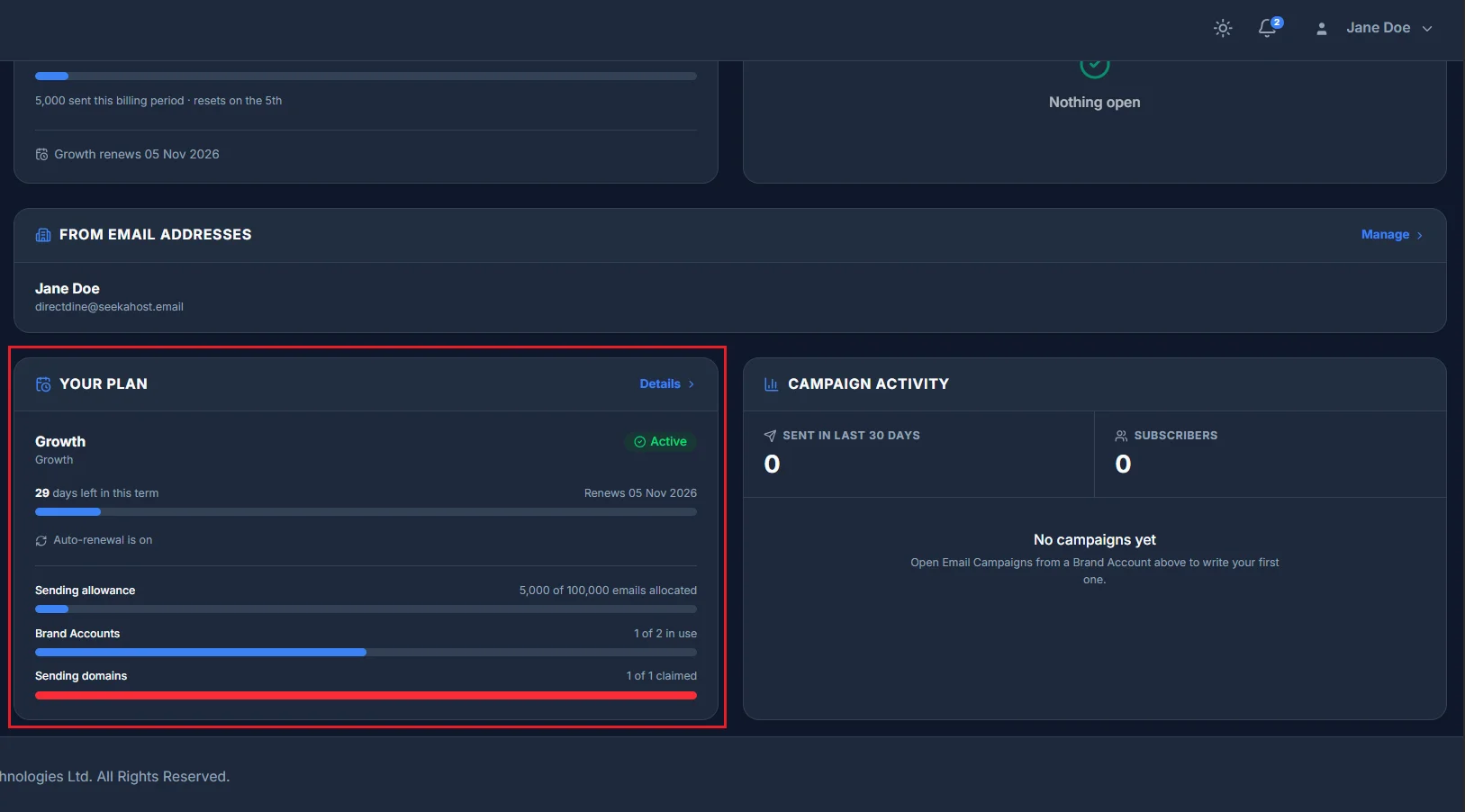
This card summarises your current plan: its name, status, how many days are left in the current term, whether auto-renewal is on, and three allowance bars for your sending limit, sending identities and verified domains. If a payment is overdue, you'll see a grace-period warning here too. Details takes you to the full billing section.
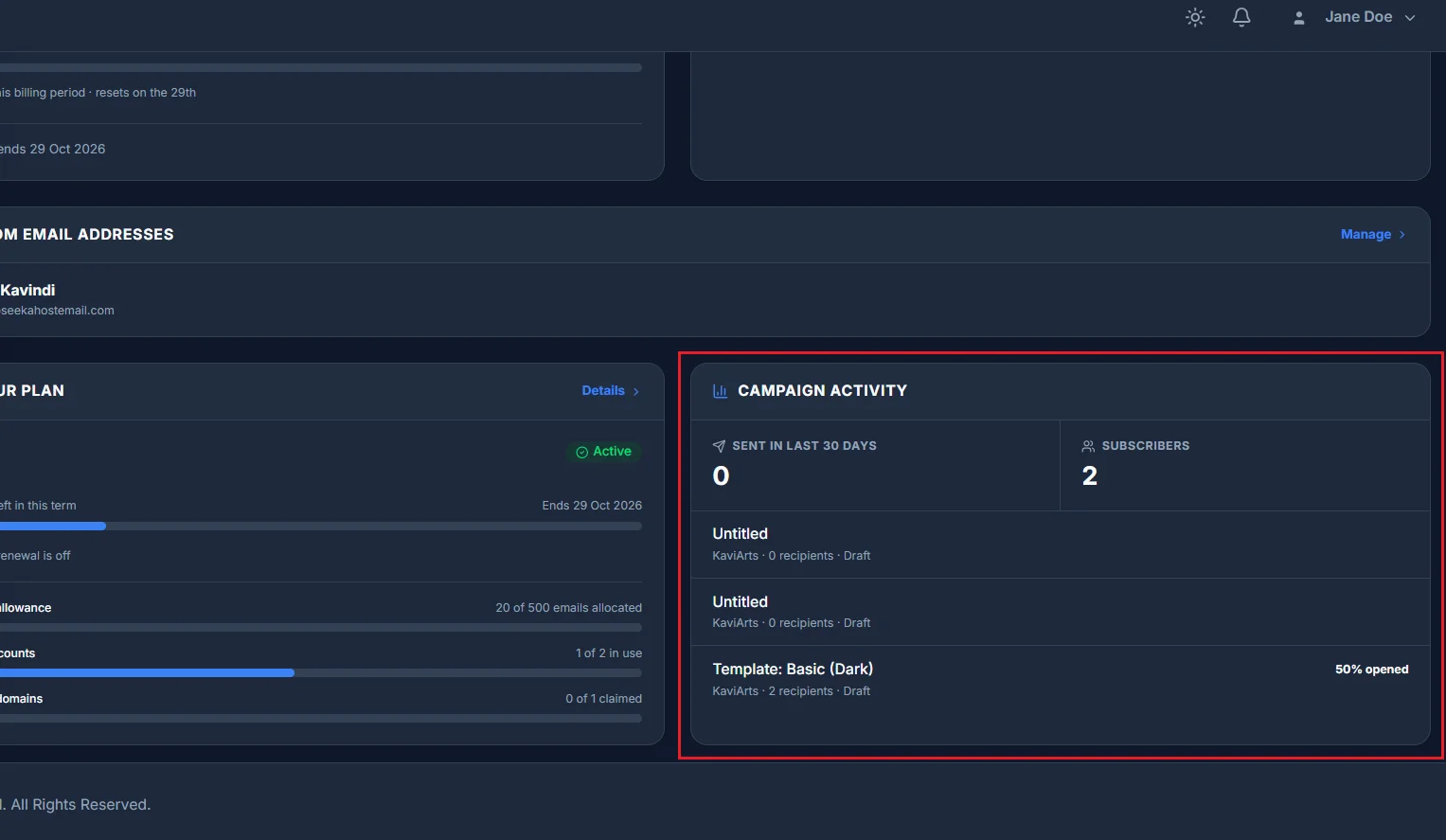
Campaign activity
This card shows how many emails you've sent in the last 30 days and your current subscriber count, along with a short list of your most recent campaigns - open rate, number of recipients and when each was sent. If there's nothing to show yet, it'll say so until you send your first campaign.