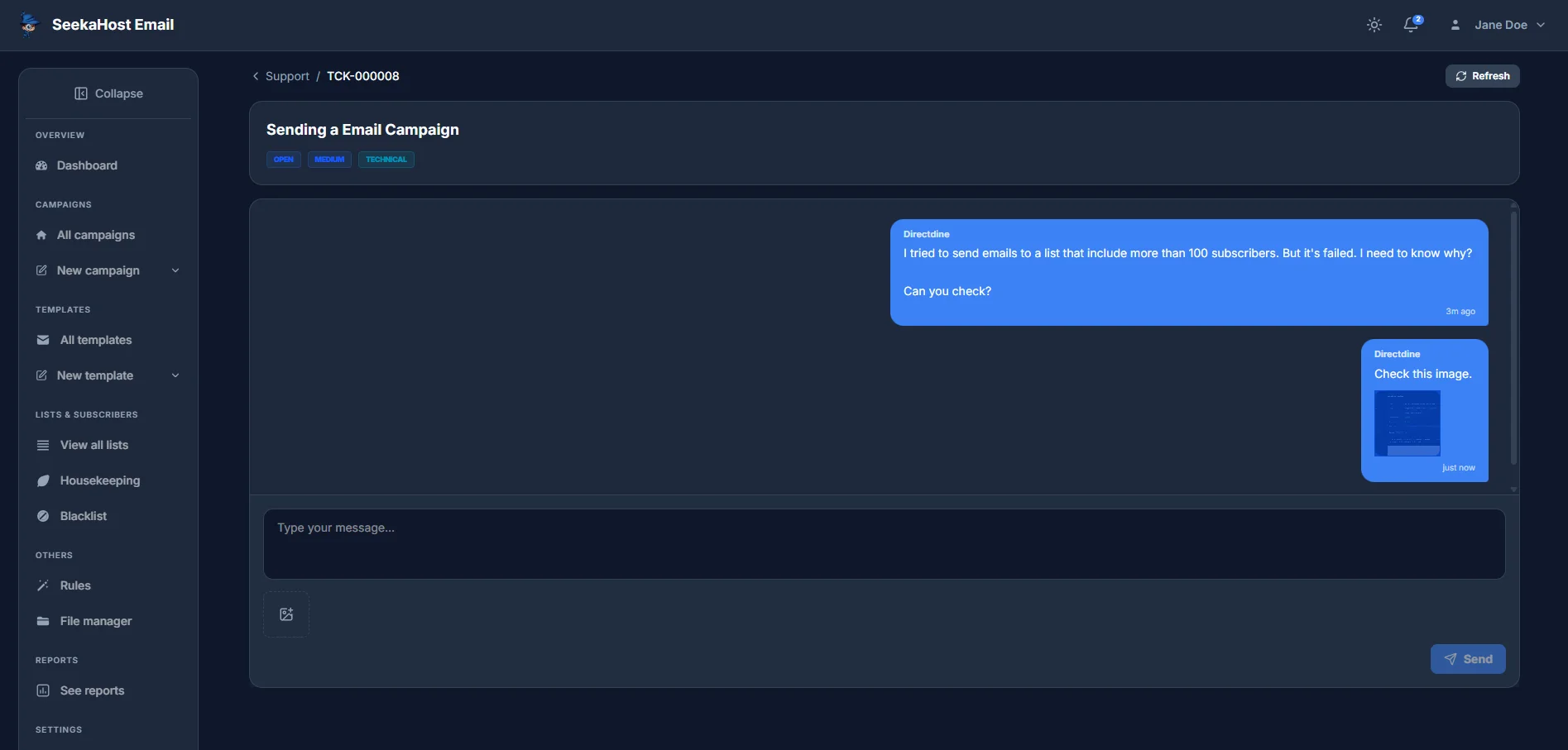
If something's not working or you just need a hand, you can open a support ticket straight from the portal and track the whole conversation with our team in one place.
Opening the Support page
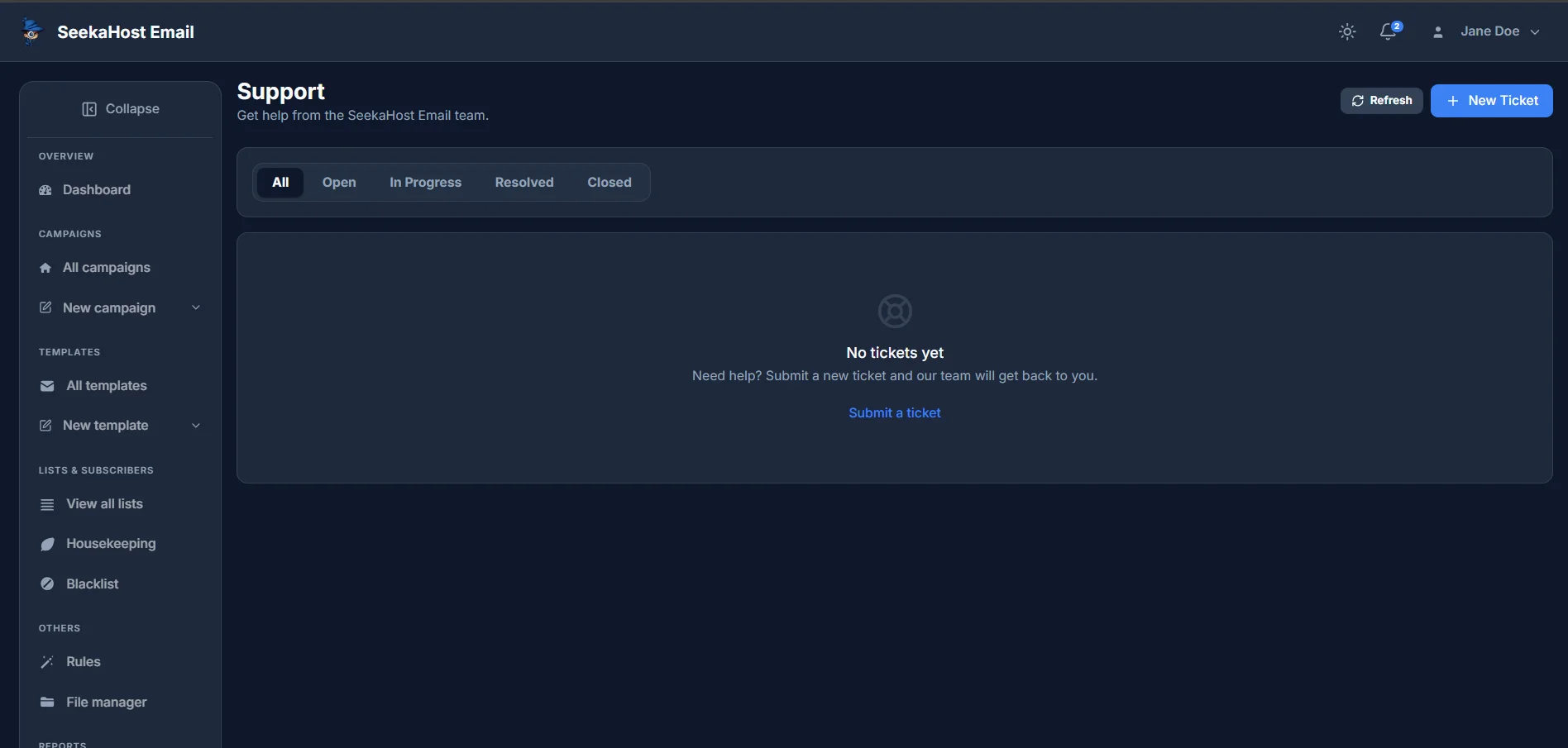
Support is listed in the sidebar of your portal. It lists every ticket you've raised, with tabs to filter by All, Open, In Progress, Resolved or Closed. If you haven't raised one yet, you'll just see a prompt to submit your first ticket.
Creating a ticket
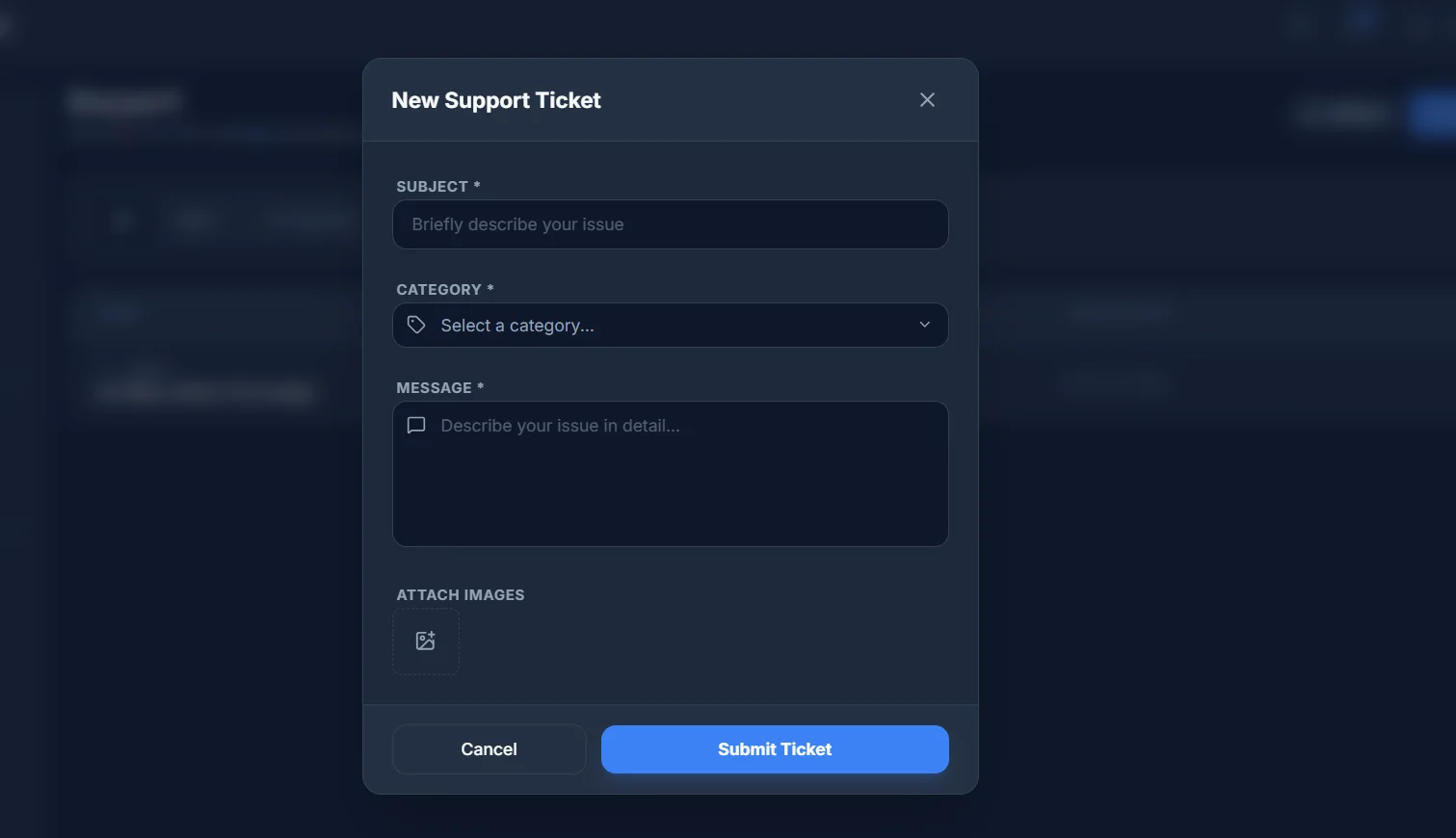
Click New Ticket to open the form. Four things go into it:
- Subject - a short summary of the issue.
- Category - Billing, Technical, General or Account.
- Message - describe what's happening in as much detail as you can.
- Attach Images - optional, up to 3 images, 5MB each (JPG, PNG, WEBP or GIF).
All three fields are required; the image attachment is the only optional part. Click Submit Ticket once you're done.
Tracking your ticket
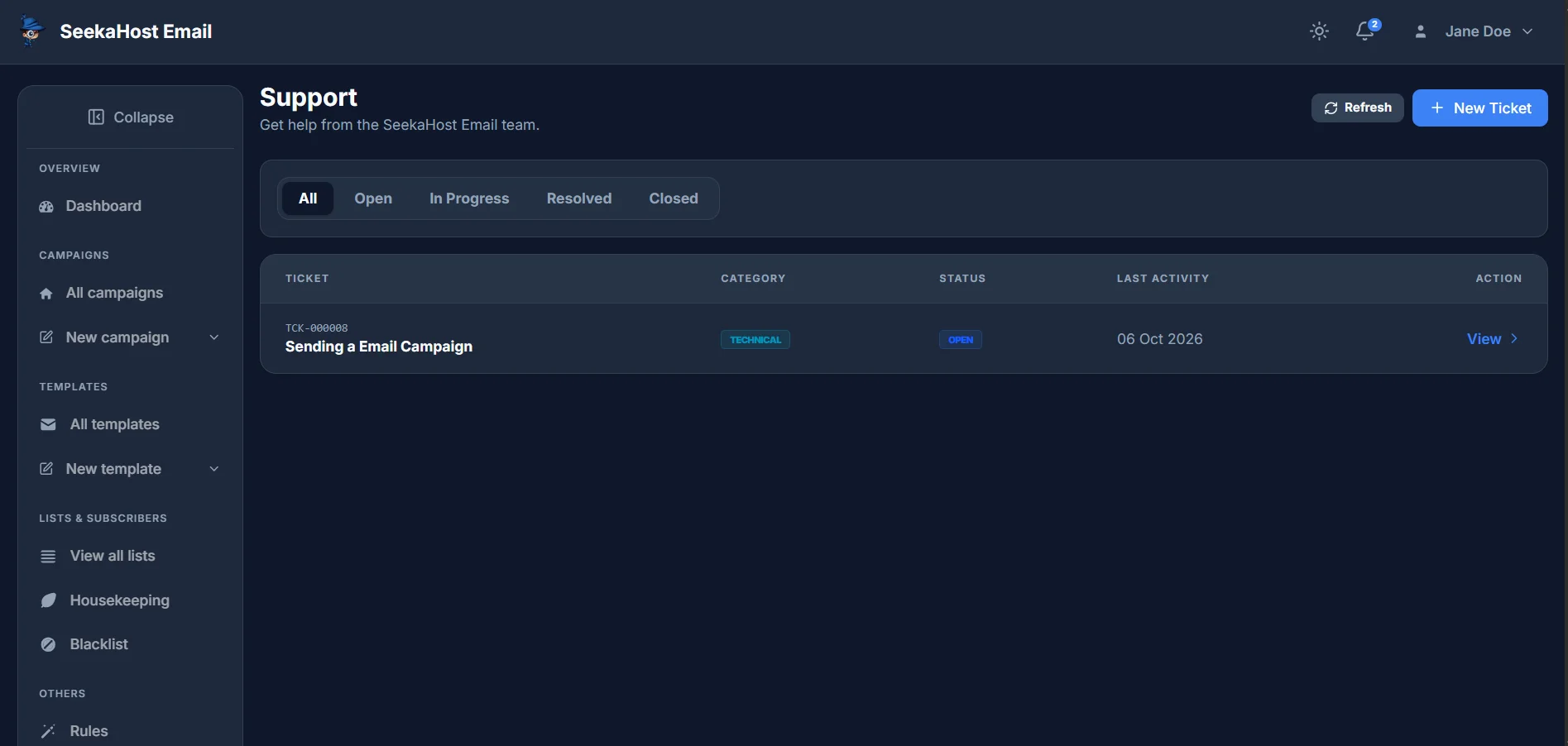
Your ticket appears in the Support list straight away - with its category, current status and when it was last active. Every ticket starts as Open, then moves through In Progress, Resolved or Closed as our team works on it. Priority is set by our team behind the scenes, not something you choose when raising it.
Replying on a ticket
Open a ticket from the list to see the full conversation. Type your reply in the box at the bottom - you can attach images here too, with the same limits as when you first raised it. If a ticket was Closed and you reply to it, it automatically reopens to Open.