
Two-factor authentication adds a second step at sign-in - a code from an authenticator app, on top of your password. It's optional, and managed from Settings → Security.
Turning it on
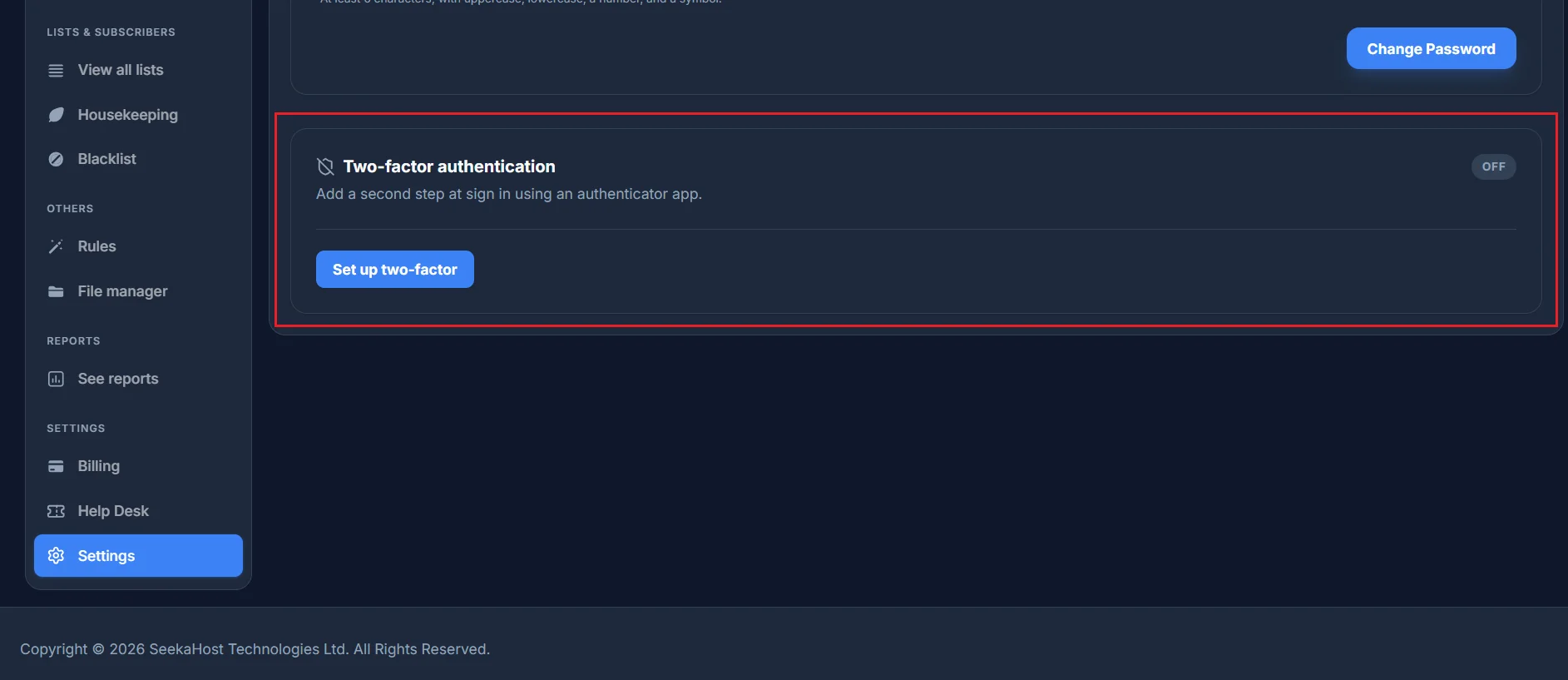
By default it's off. Click Set up two-factor to begin.
Scanning the QR code
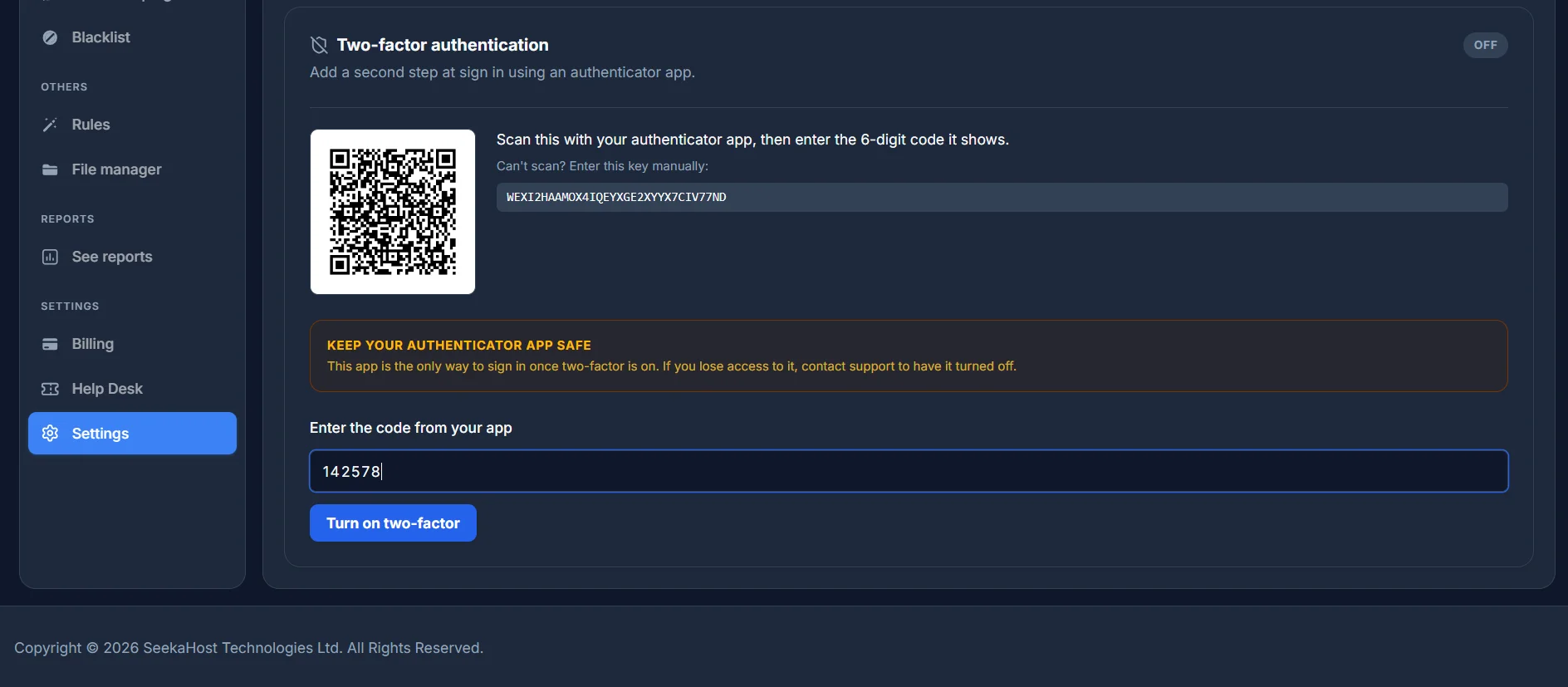
Scan the QR code with an authenticator app (or enter the key manually if you can't scan it), then type the 6-digit code it shows into Enter the code from your app and click Turn on two-factor. Keep that app safe - if you lose access to it later, there's no self-serve way to turn two-factor off, you'd need to contact support.
Turning it off
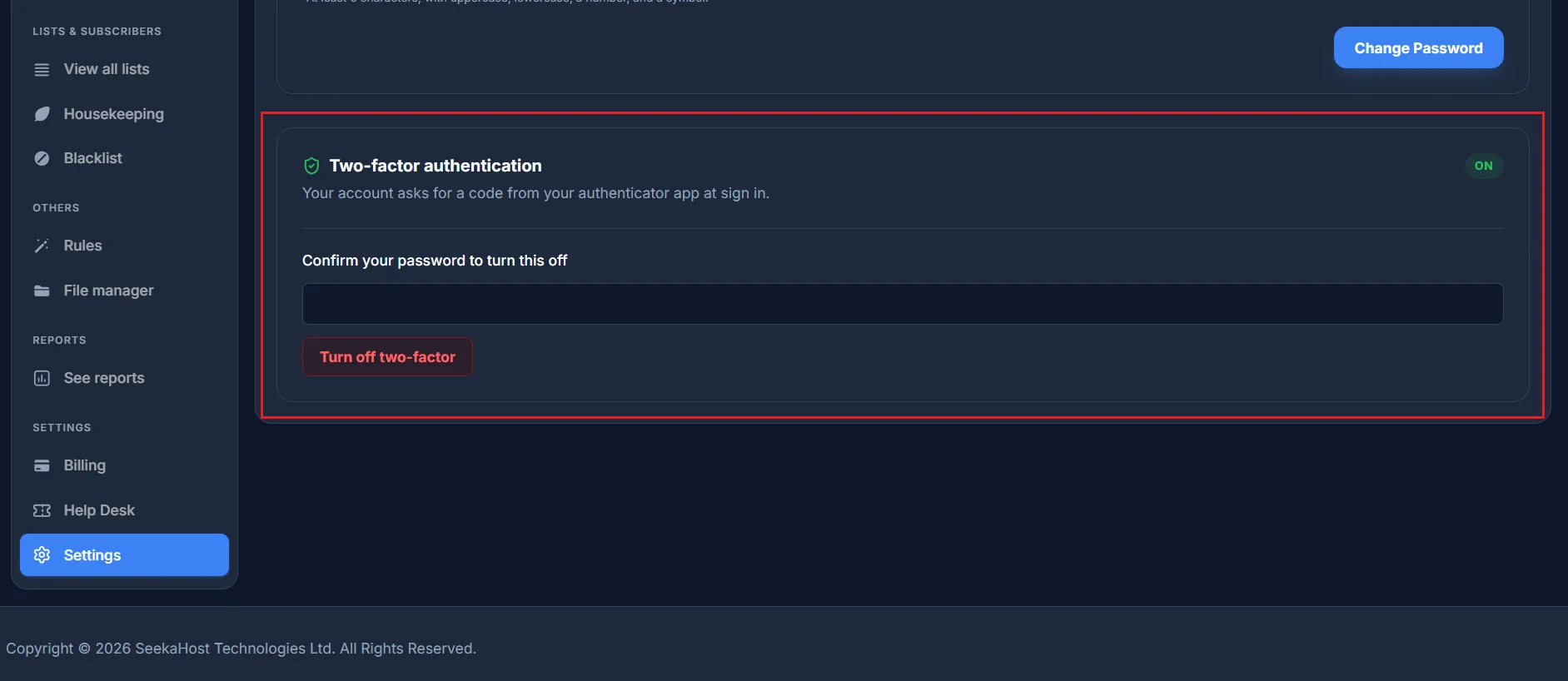
Once it's on, the card shows ON. To turn it off, confirm your current password and click Turn off two-factor.
See what the extra code step looks like when you sign in. Why can't I sign in to my account? →