Forgotten your password? Here's the full walkthrough to get back in.
Requesting a reset link
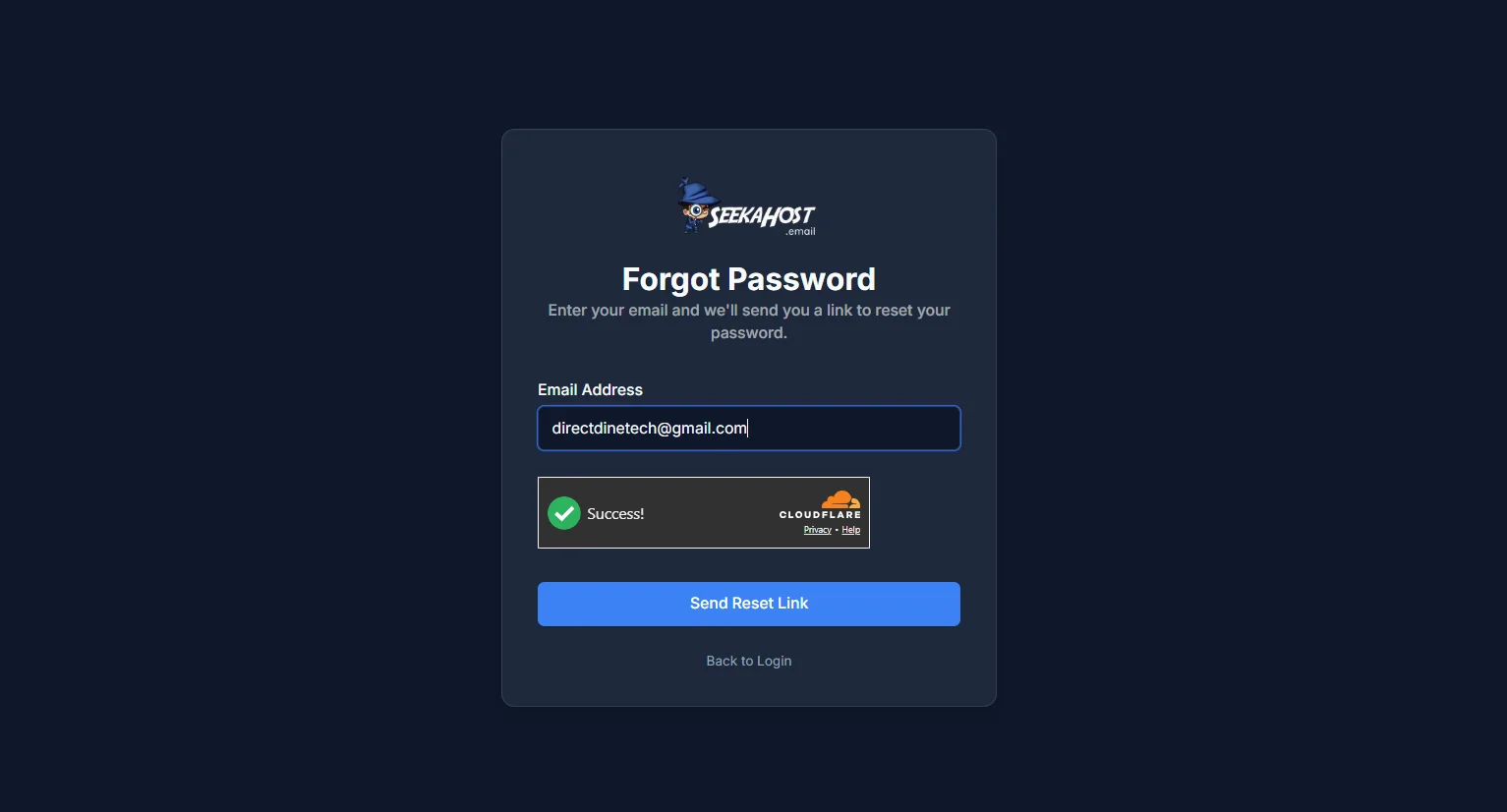
Click Forgot password on the sign-in page, enter the email address on your account, and click Send Reset Link.
Check your email
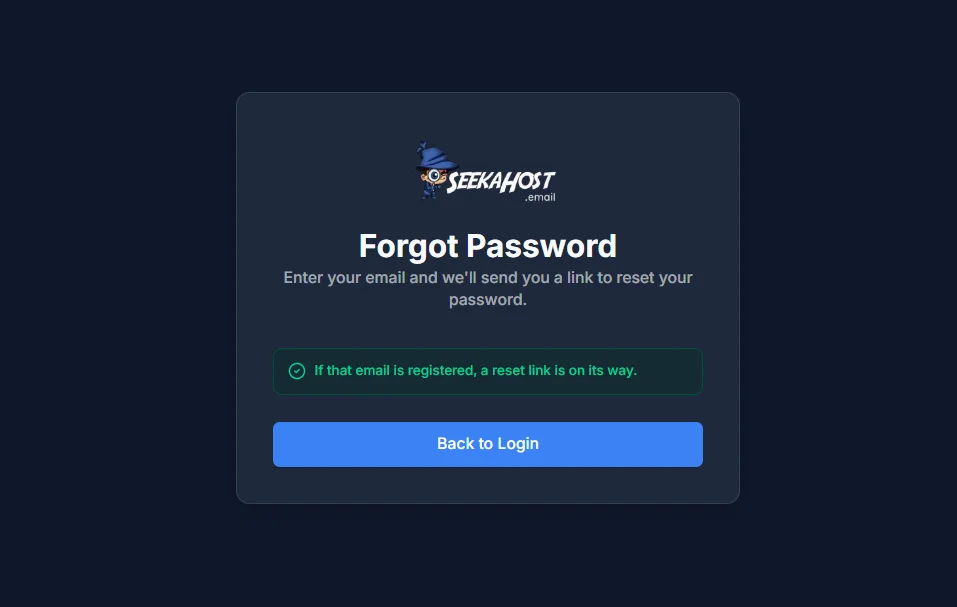
You'll see a confirmation on screen straight away - "If that email is registered, a reset link is on its way." It's worded that way deliberately, so it looks the same whether or not that email actually has an account.
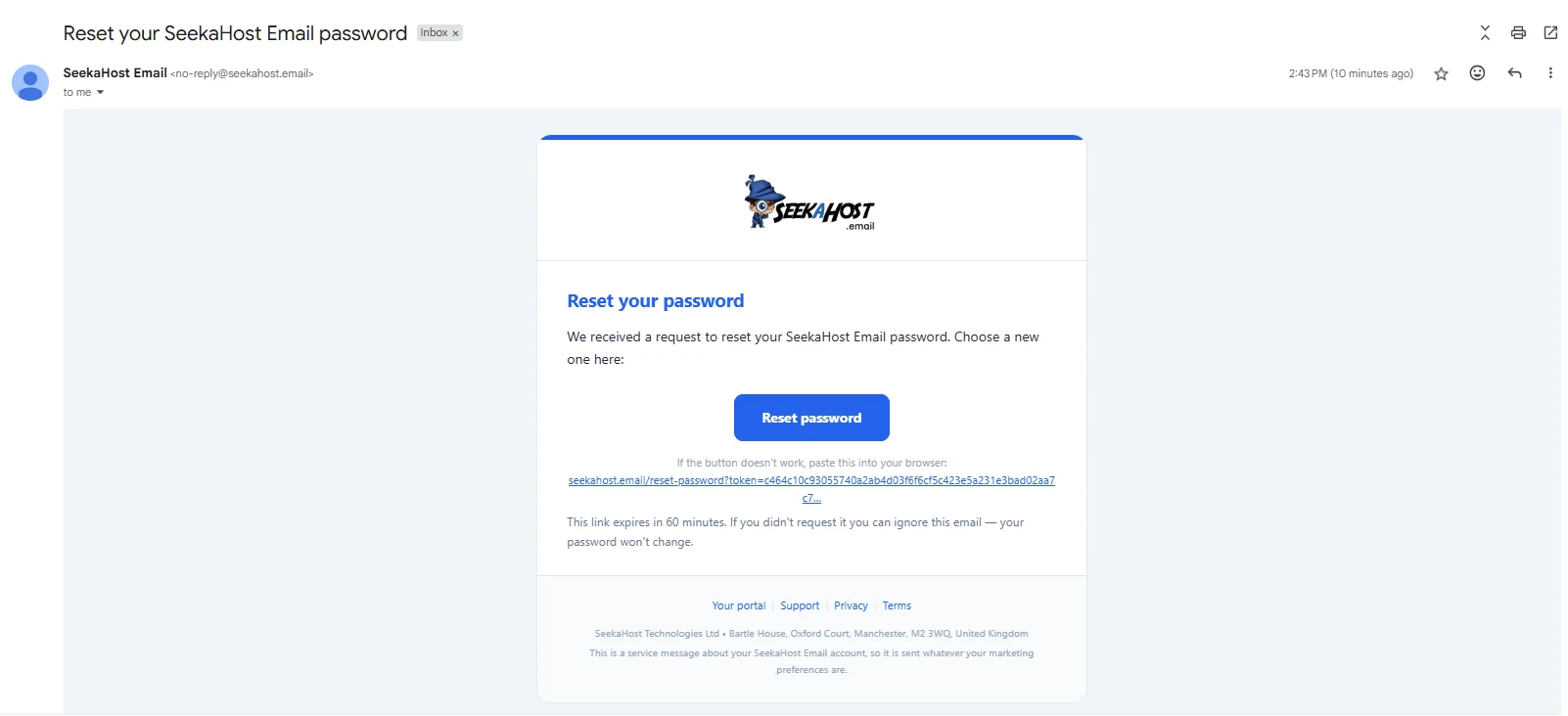
If an account does exist for that address, an email arrives with a Reset password button. It's only valid for 60 minutes, so use it before it expires - if it does, just request a new one.
Setting your new password
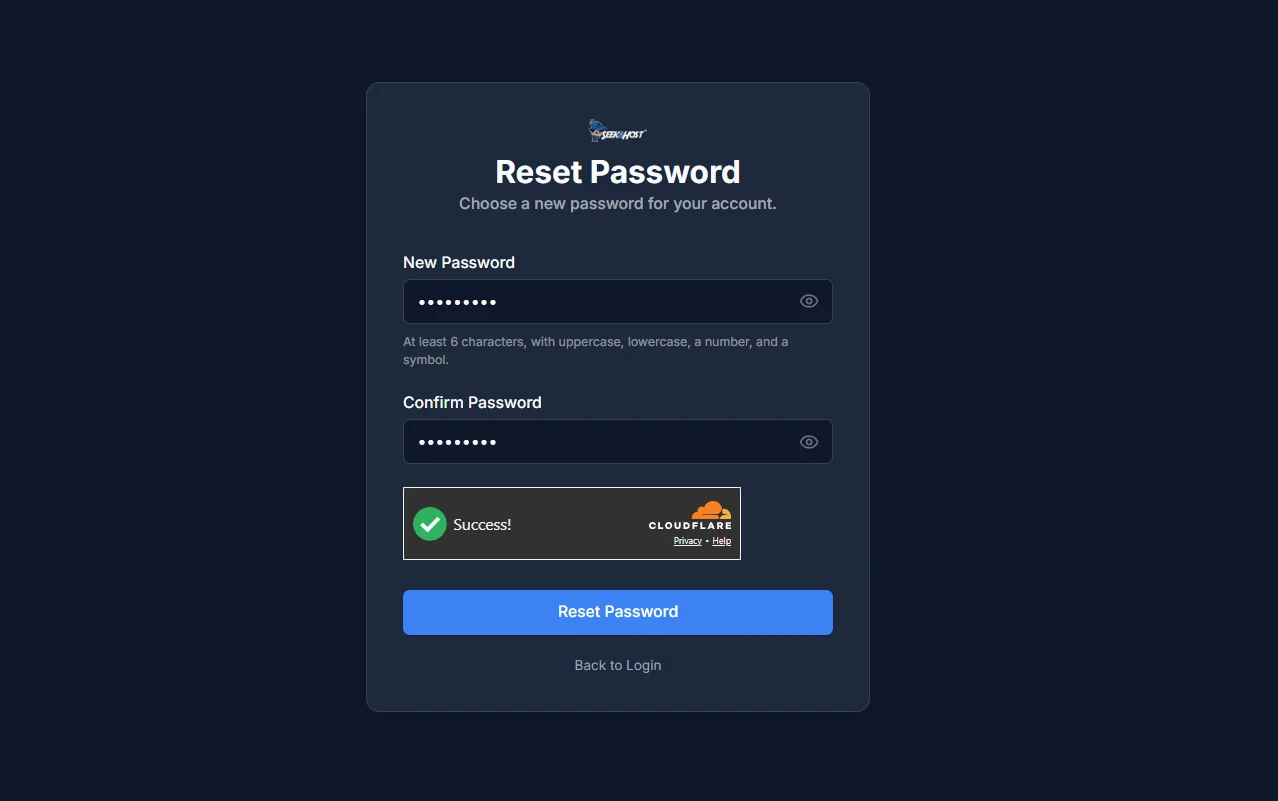
The link takes you to the Reset Password page. Enter your new password twice - it needs at least 6 characters, with uppercase, lowercase, a number and a symbol.
All done
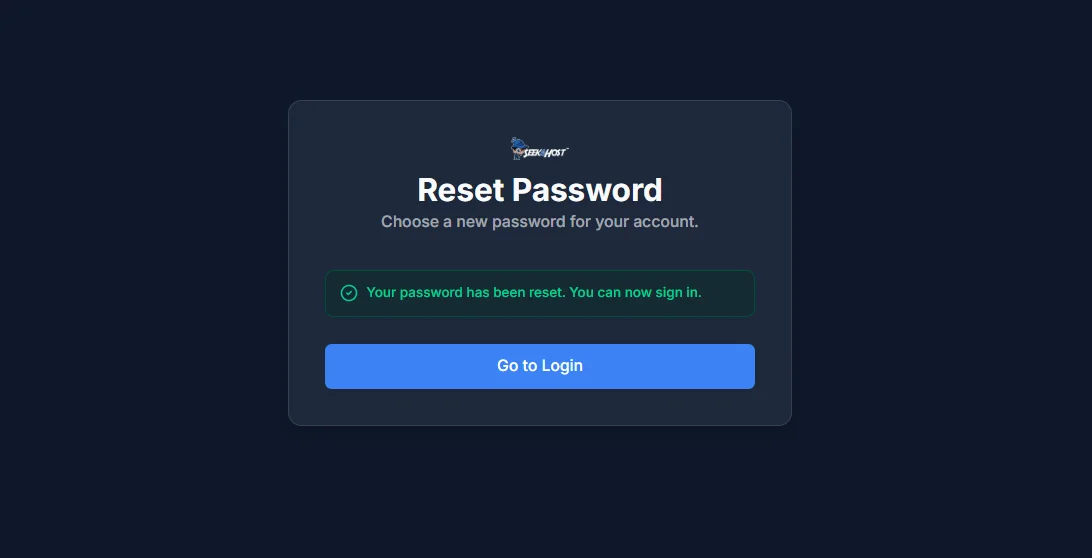
Once it's reset you'll see "Your password has been reset. You can now sign in." One thing worth knowing: resetting your password signs you out of every other device and session, as a security measure - so you may need to sign back in elsewhere too.