
A template saves a design once so you can reuse it for every future campaign, instead of rebuilding the same layout from scratch each time. There are two ways to end up with one: build one directly, or save a campaign's content as a template while you're creating it.
Starting a new template
Go to Templates → All templates. This lists every template you've saved, with Preview, Use, Duplicate, Edit and Delete for each one.
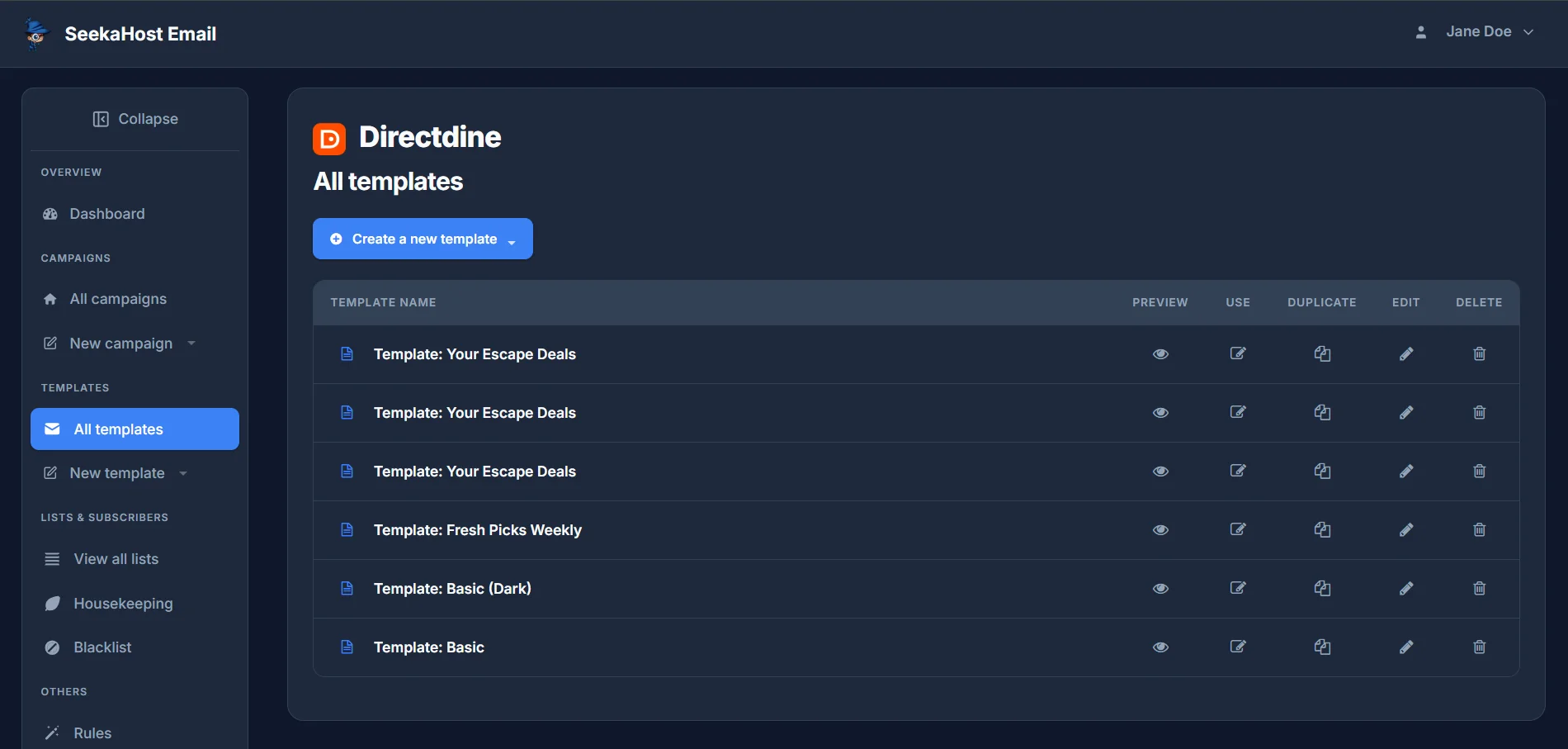
Click Create a new template to open the menu - build one from scratch, import an HTML file, or import from a URL.
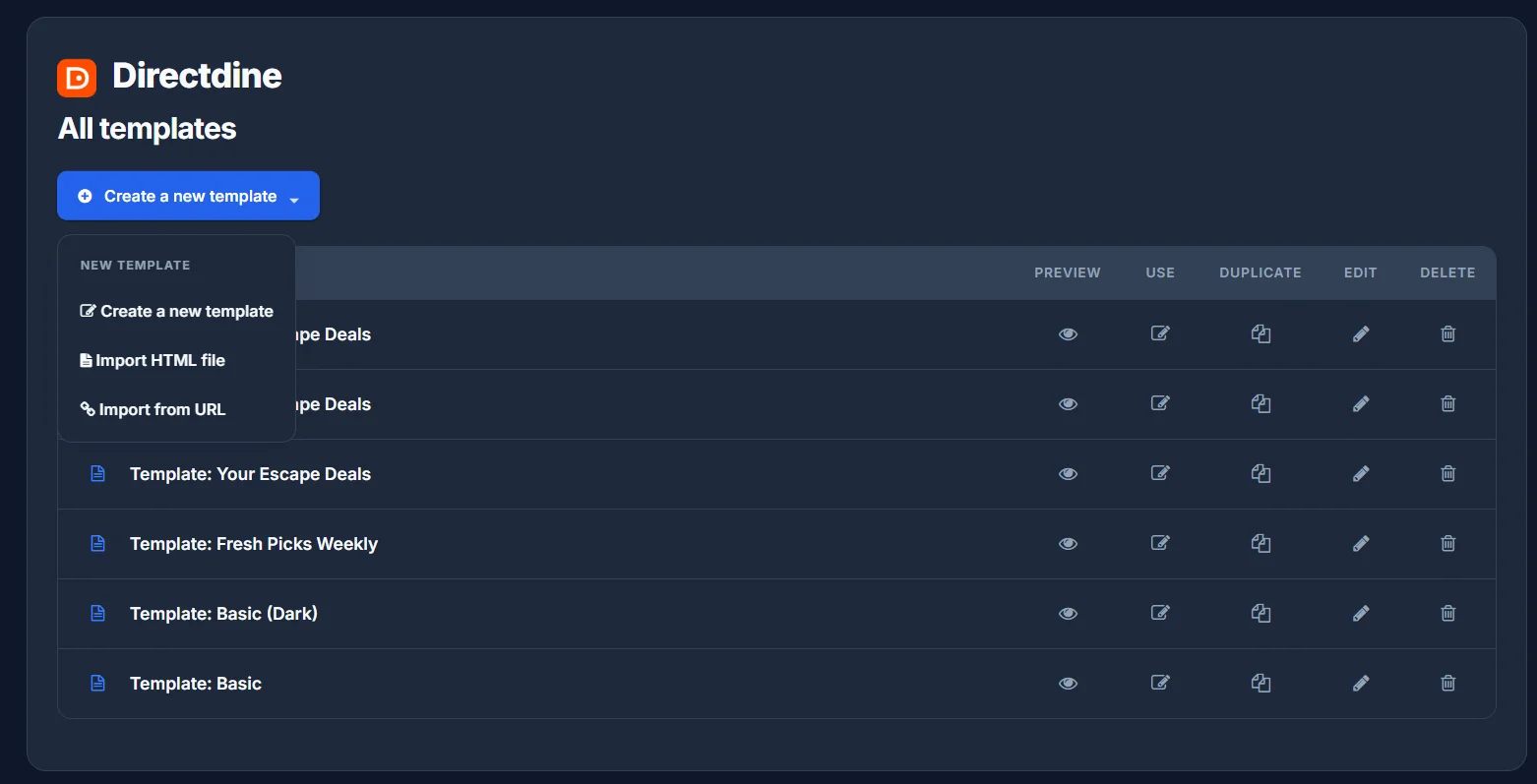
Filling in the template
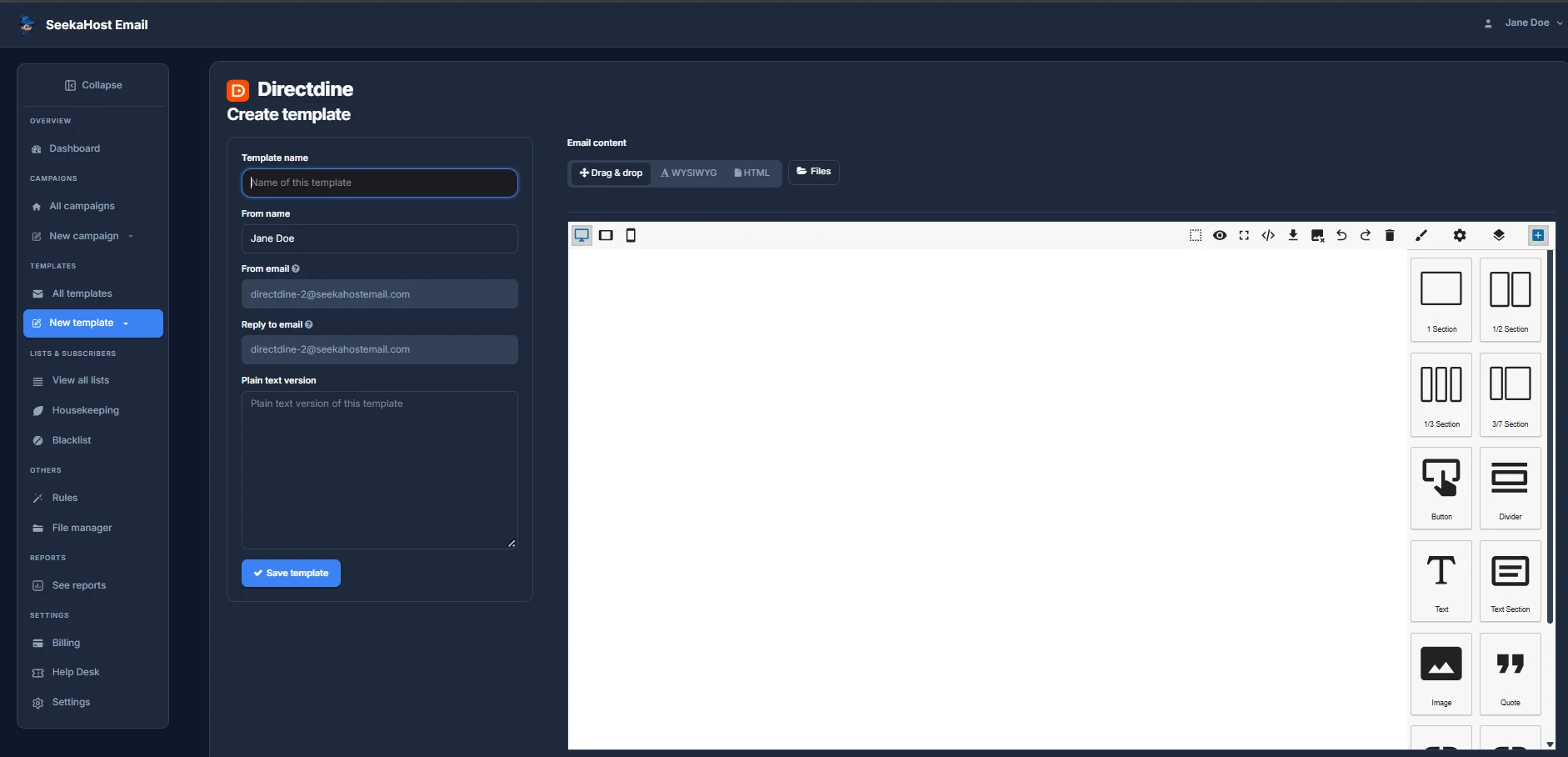
This opens the Create template page - the same shape as the campaign details form, minus a Subject line, since a template isn't sent directly:
- Template name - your own label for finding it again later. Not shown to recipients.
- From name and From email - who it's from. From email is pre-filled with your verified sending identity and can't be changed here.
- Reply to email - where replies go. Also pre-filled from your sending identity.
- Plain text version - optional, but worth filling in alongside the HTML version.
On the right, Email content gives you the same Drag & drop, WYSIWYG and HTML modes as a campaign, plus the Files tab for anything you've uploaded. Build the design, then click Save template.
Managing your templates
Back on All templates, each saved template has five actions:
- Preview - see how it looks without opening the editor.
- Use - start a new campaign with this template's content already loaded in, ready to adjust.
- Duplicate - make a copy of it, handy for a variant without touching the original.
- Edit - open the template itself to change its design.
- Delete - remove it for good.
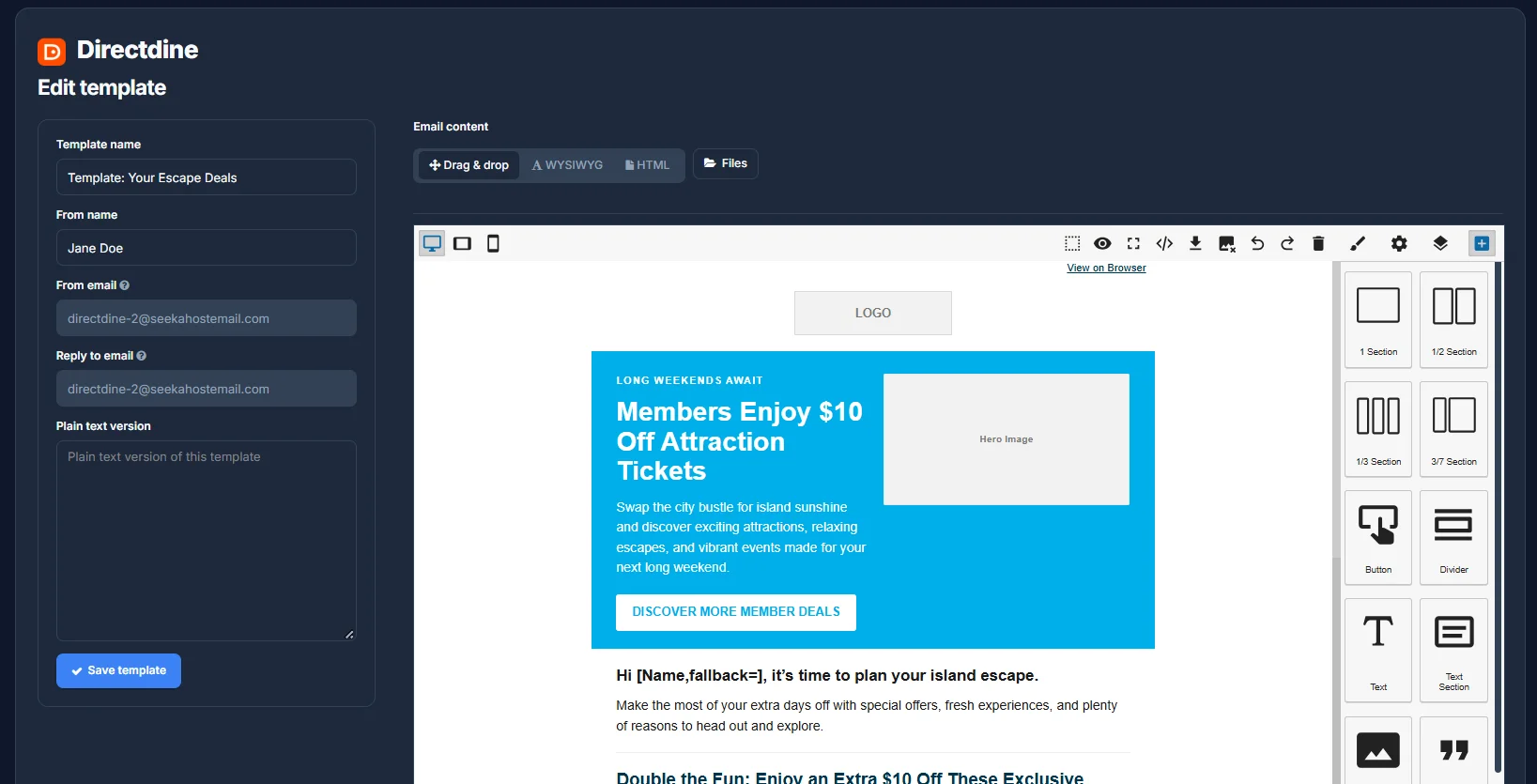
Editing a template only changes the template - any campaign you've already built from it stays as it was when you used it.