Lists & Subscribers → Blacklist keeps specific addresses, or whole domains, out of every list in your brand for good - useful for disposable-email domains, known complainers, or anyone who's asked never to be contacted again.
Suppression list
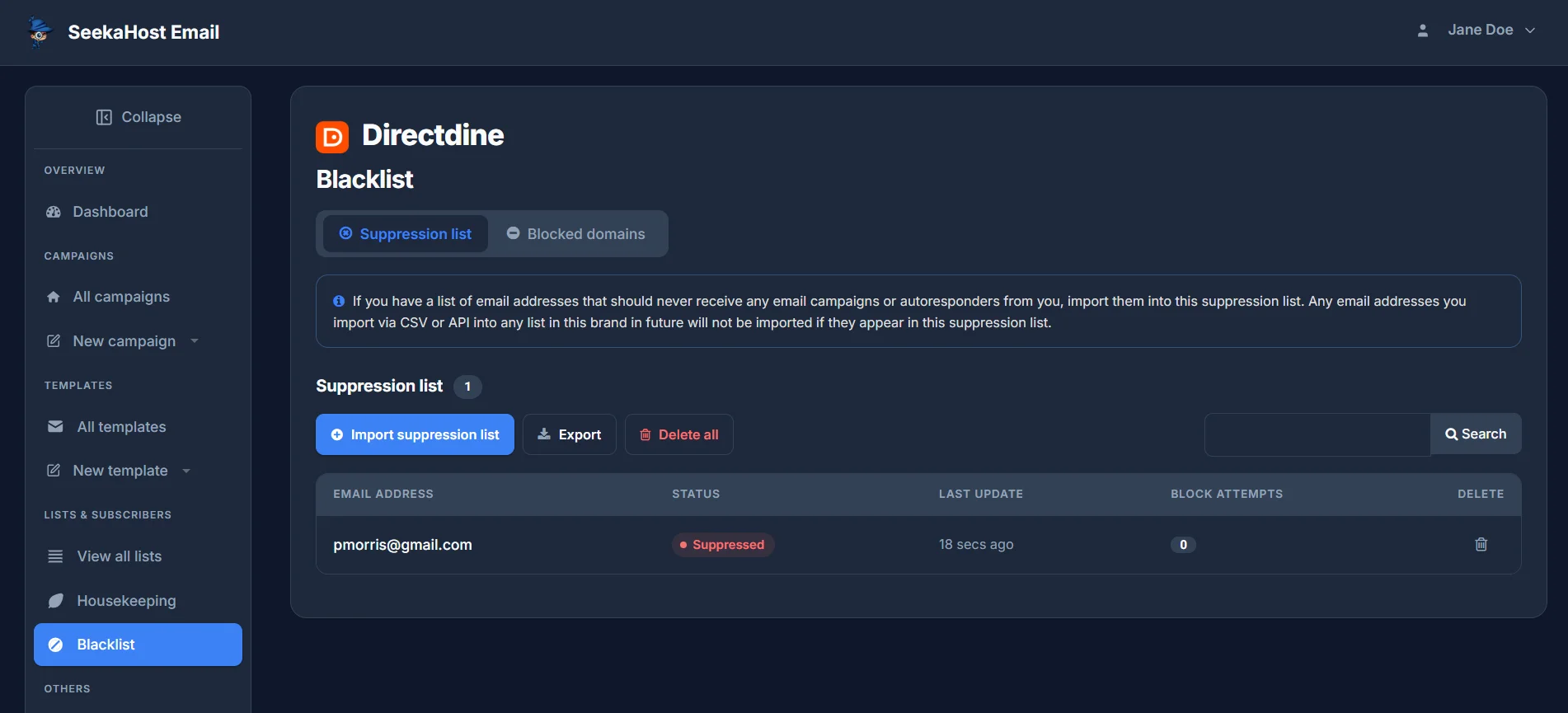
Any address on this list is removed from every list in your brand immediately, and can never be imported into one again - whether you add it via CSV or your own future imports. Each entry shows its status, when it was last updated, and how many times something tried (and failed) to import it.
Blocked domains
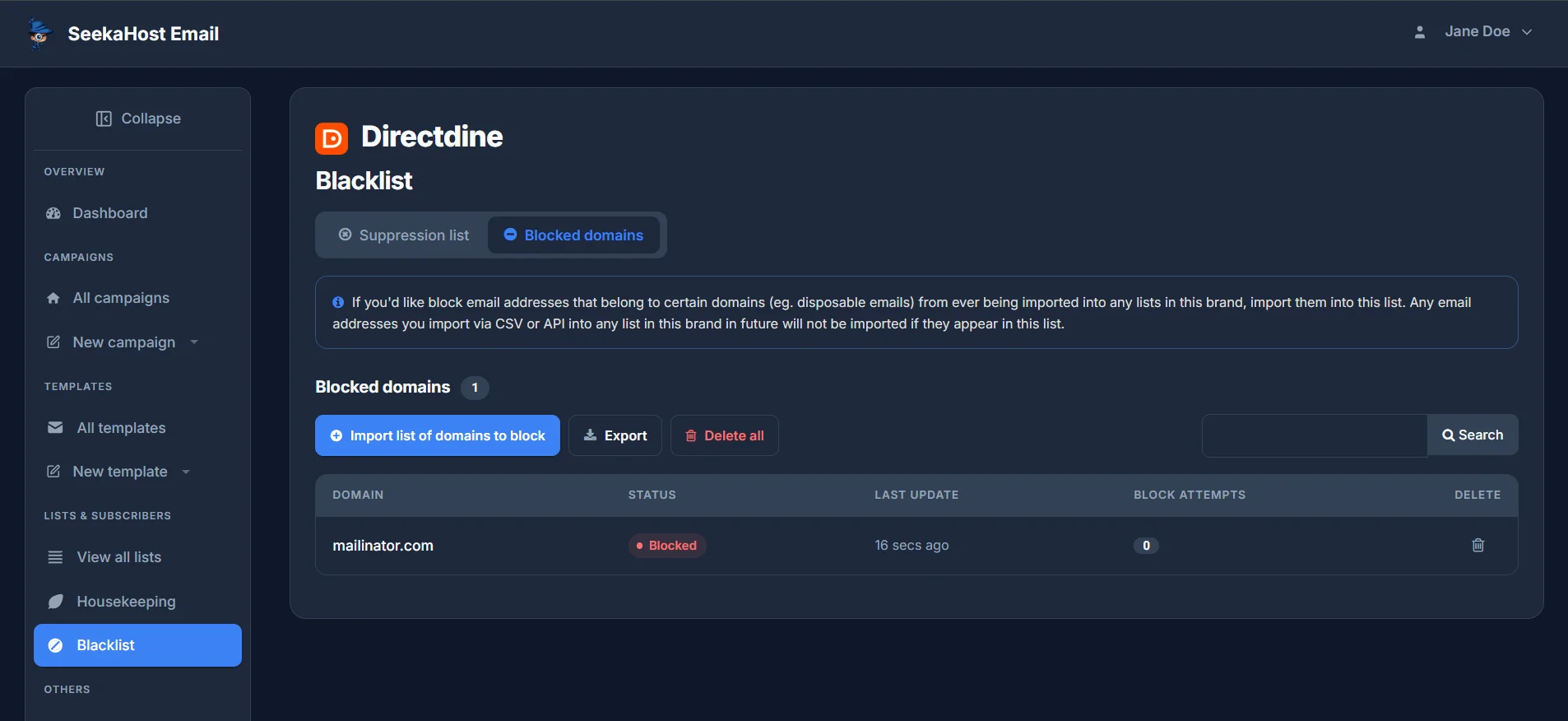
The same idea, but for an entire domain - disposable-email providers are the usual case. Blocking a domain stops any address on it from ever being imported into any list in your brand.
Importing a list
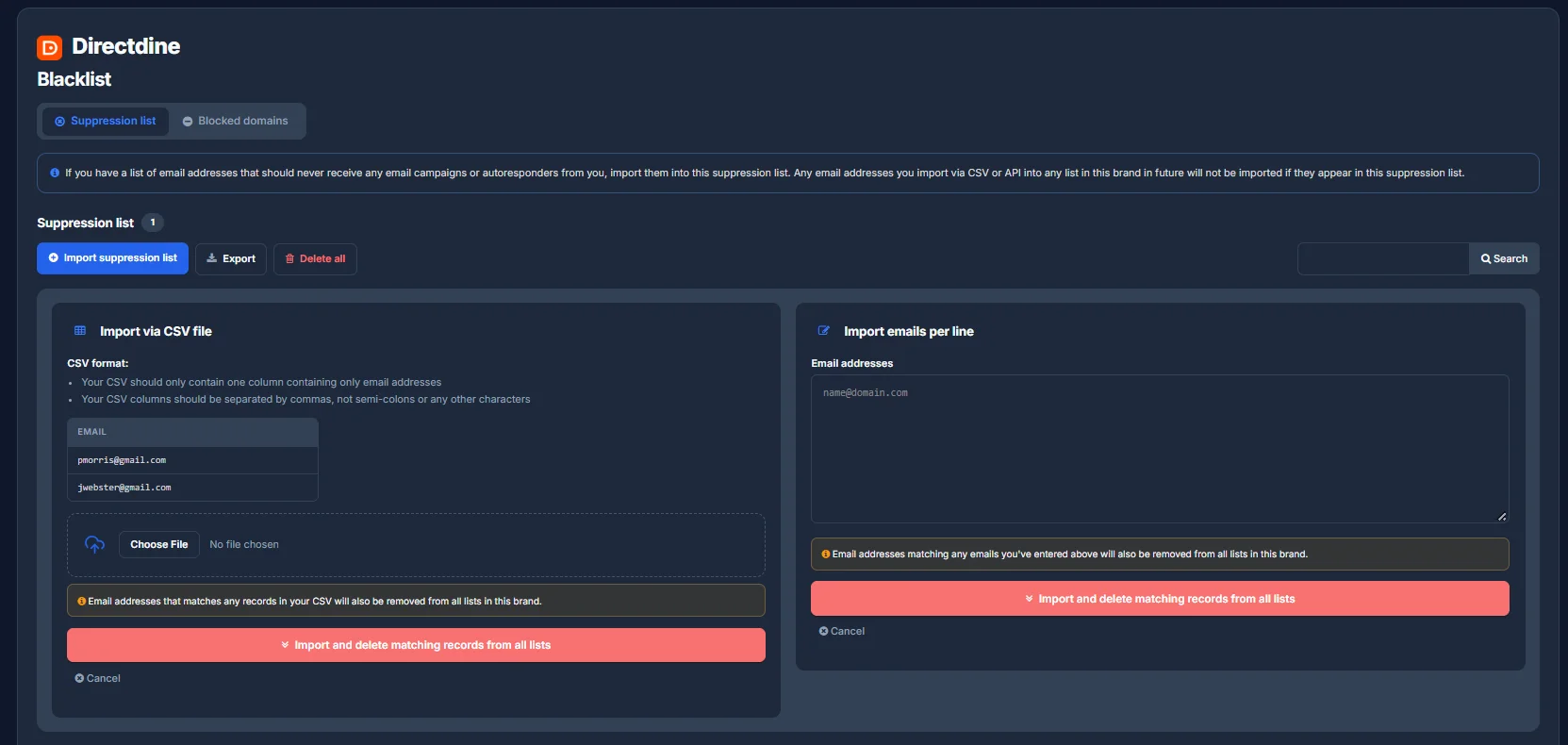
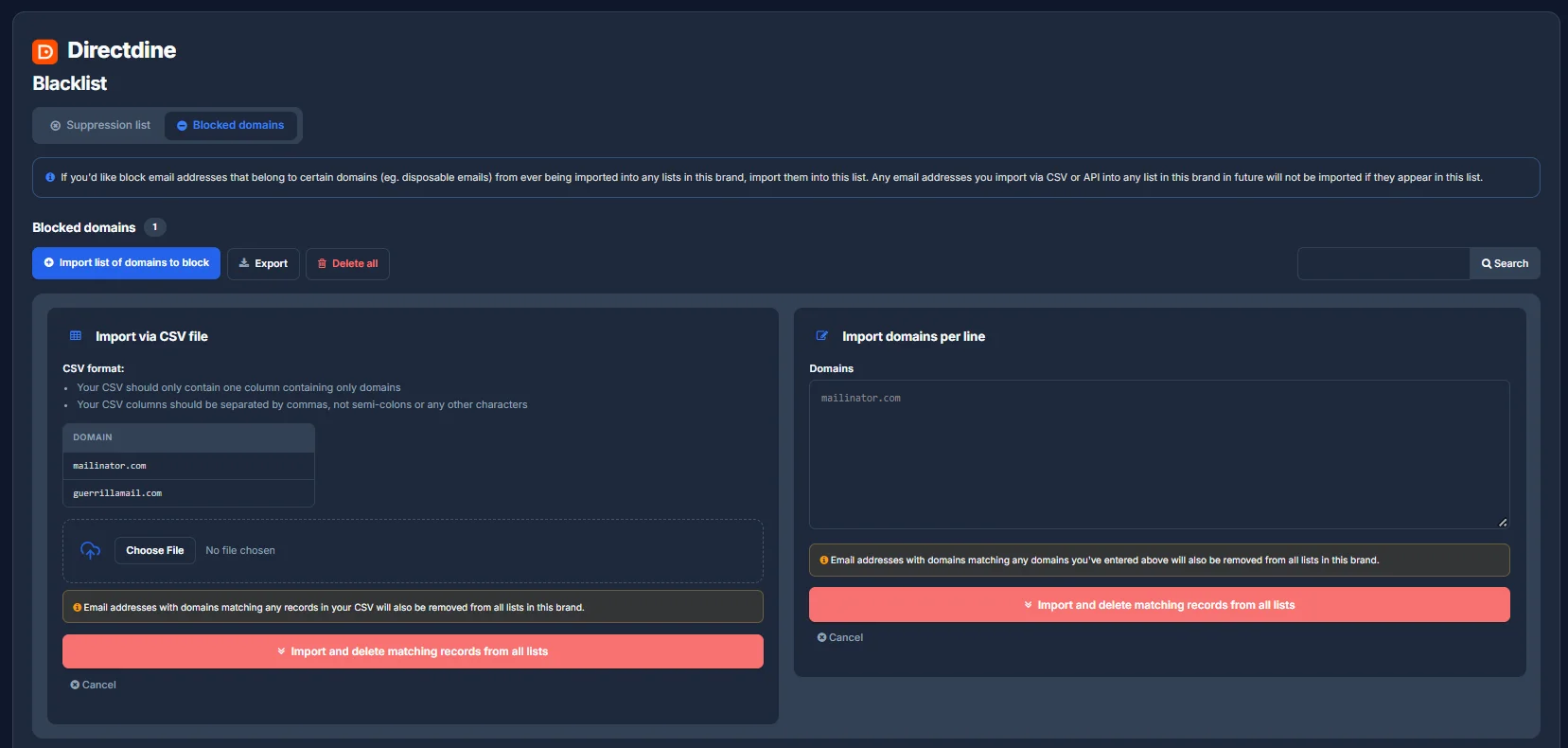
Both tools import the same two ways: a CSV with a single column of addresses or domains, or pasting them in one per line. Either way, anything that matches an address already on one of your lists is removed from there too, not just blocked going forward.