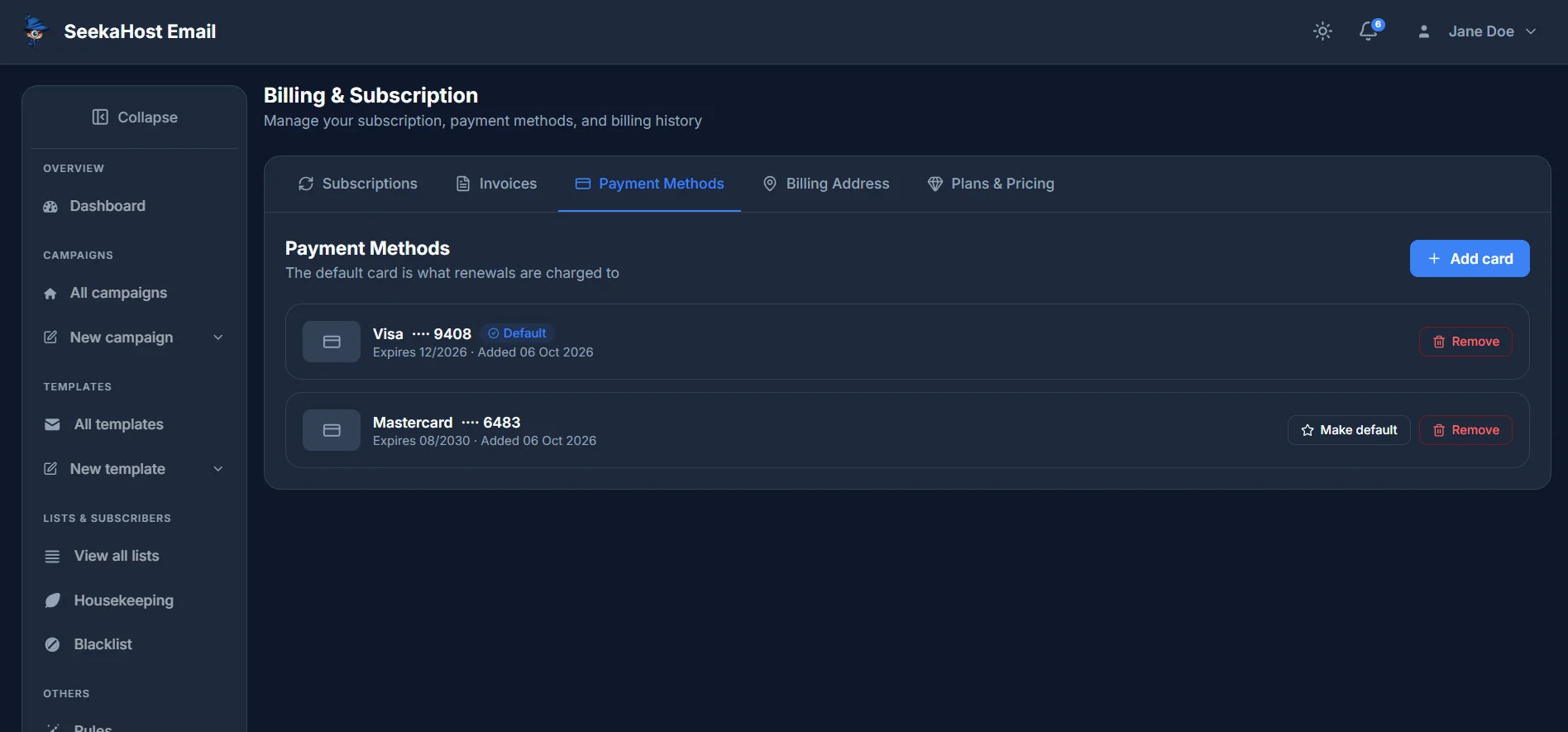
Manage the cards your subscription renews against from Billing → Payment methods.
Adding a card
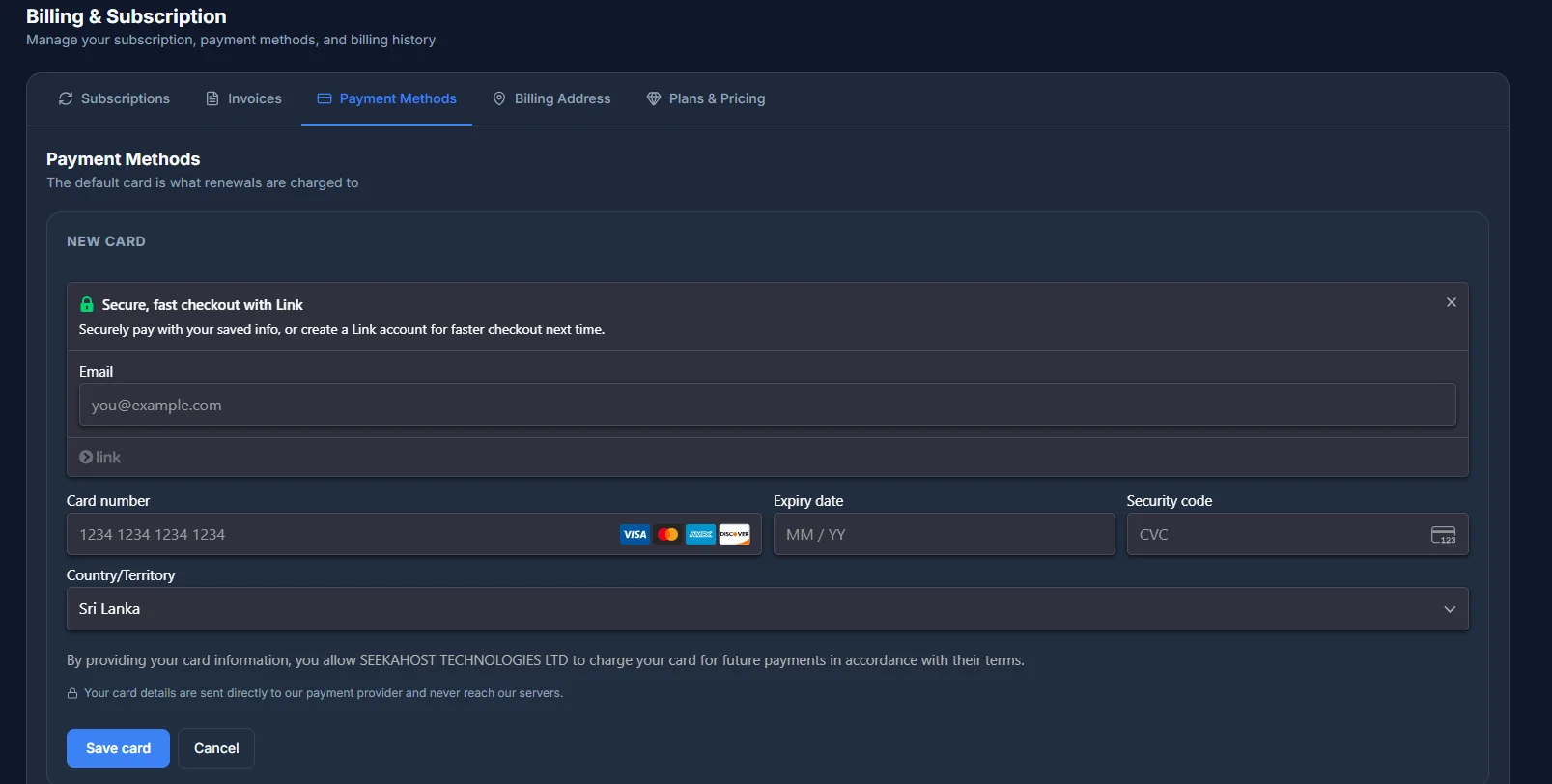
Click Add card and enter your card details into the secure form that opens. Your card details go straight to our payment provider - they never reach our own servers, which only ever see the card's brand, last 4 digits and expiry date.
Your default card
You can keep more than one card on file. One is always marked as the default - that's the card charged for renewals and plan changes. Switch the default to a different card any time with Make default.
Removing a card
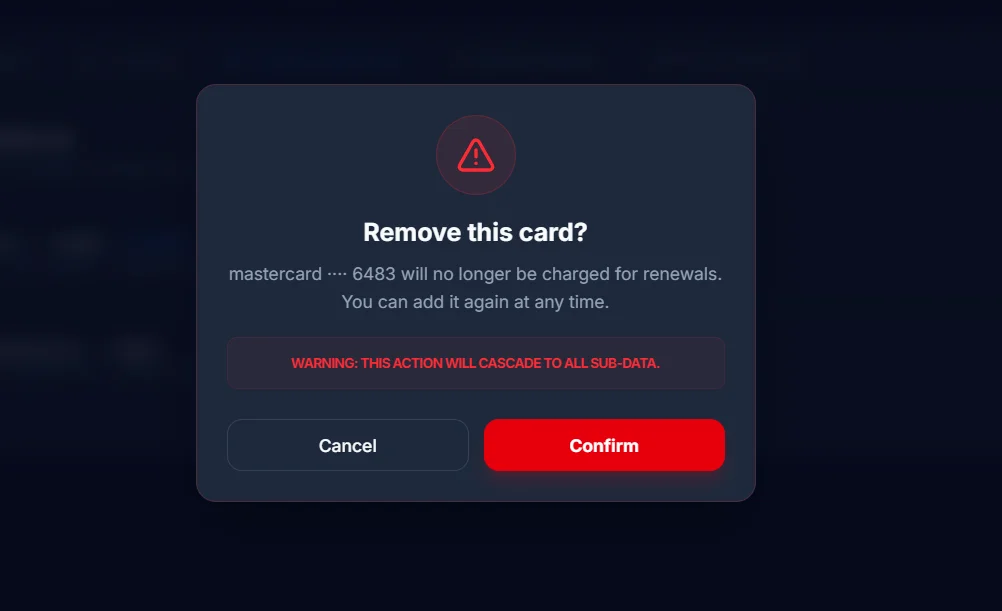
Click Remove on a card, then confirm - the dialog reminds you that card stops being charged for renewals, and that you can always add it again later. You can't remove the current default while another card is on file - set a different one as default first. And if it's your only card, you can't remove it while a subscription is actively set to auto-renew; turn that off (or cancel the subscription) first.